Installing TAGRA
Guide · version 3.6.1 · 2026A step-by-step walkthrough of installing, activating and logging in to TAGRA — software for evaluating tachograph data.
Download TAGRAQuick summary
Installing TAGRA takes about 15 minutes. Download the installer from tagra.app/try, run TAGRA-setup.exe and let it install Firebird and the Microsoft Windows Desktop Runtime, then launch TAGRA and choose Try (free, just an email), Activate (with a purchased license) or Offline. On first login, create a new database and you are ready to evaluate tachograph data.
Download and unzip the package
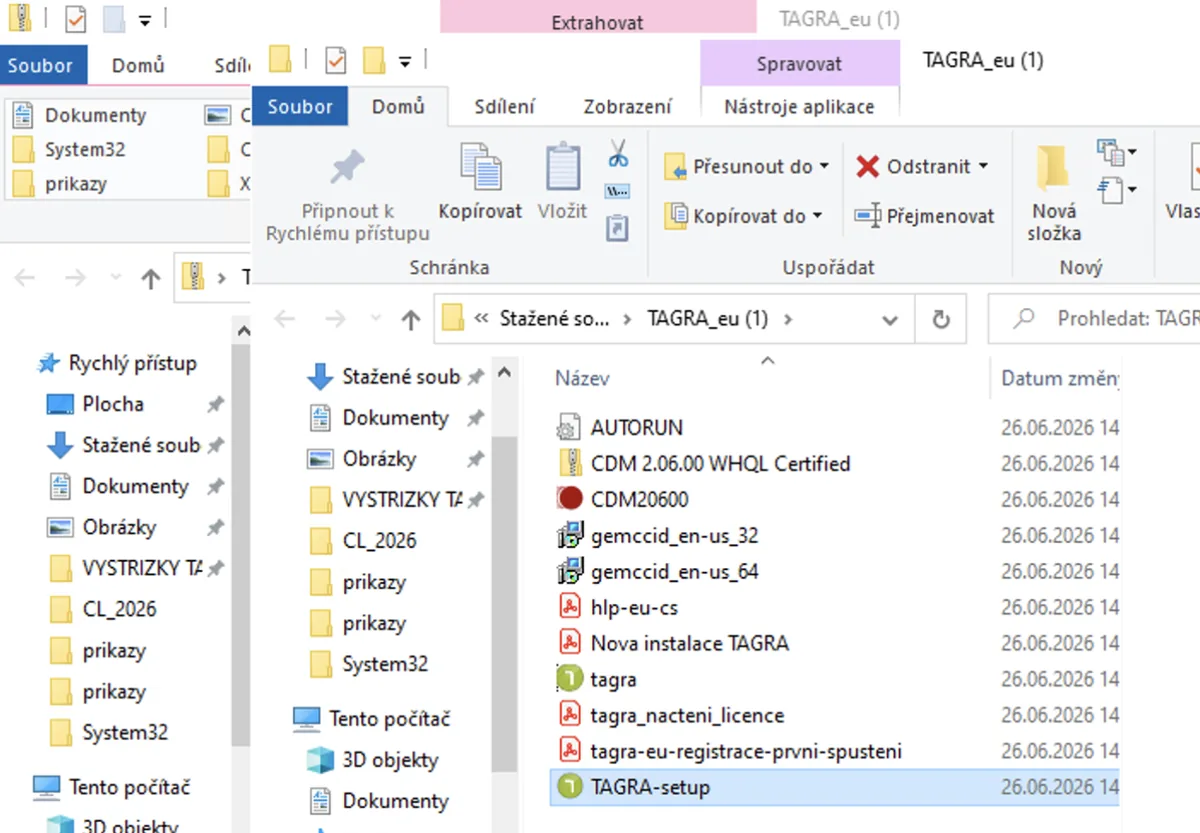
You can download the latest version of TAGRA from tagra.app/try. After downloading, right-click the file and choose Extract All. The package contains the installer files plus guides for installation, activation and everyday use.
Double-click TAGRA-setup.exe to start the installation.
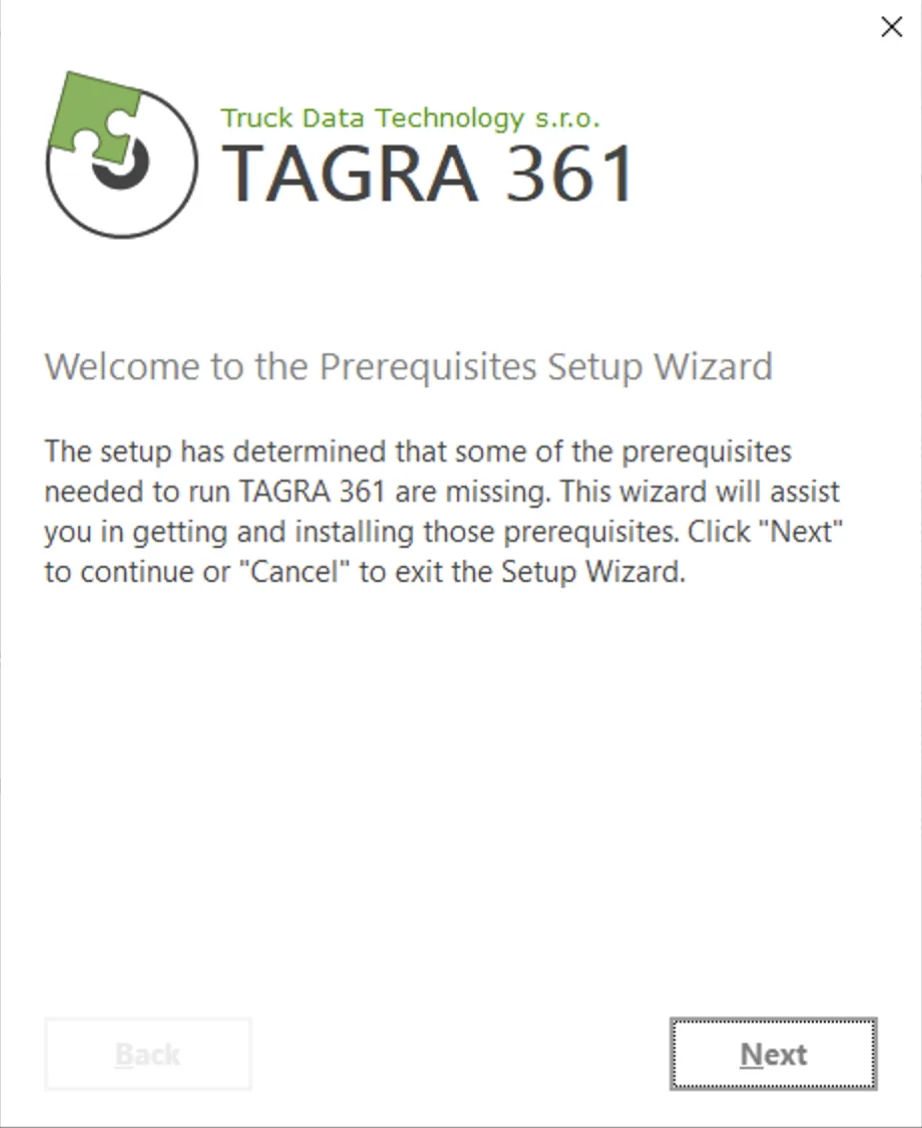
Start the installation with the “NEXT” button.
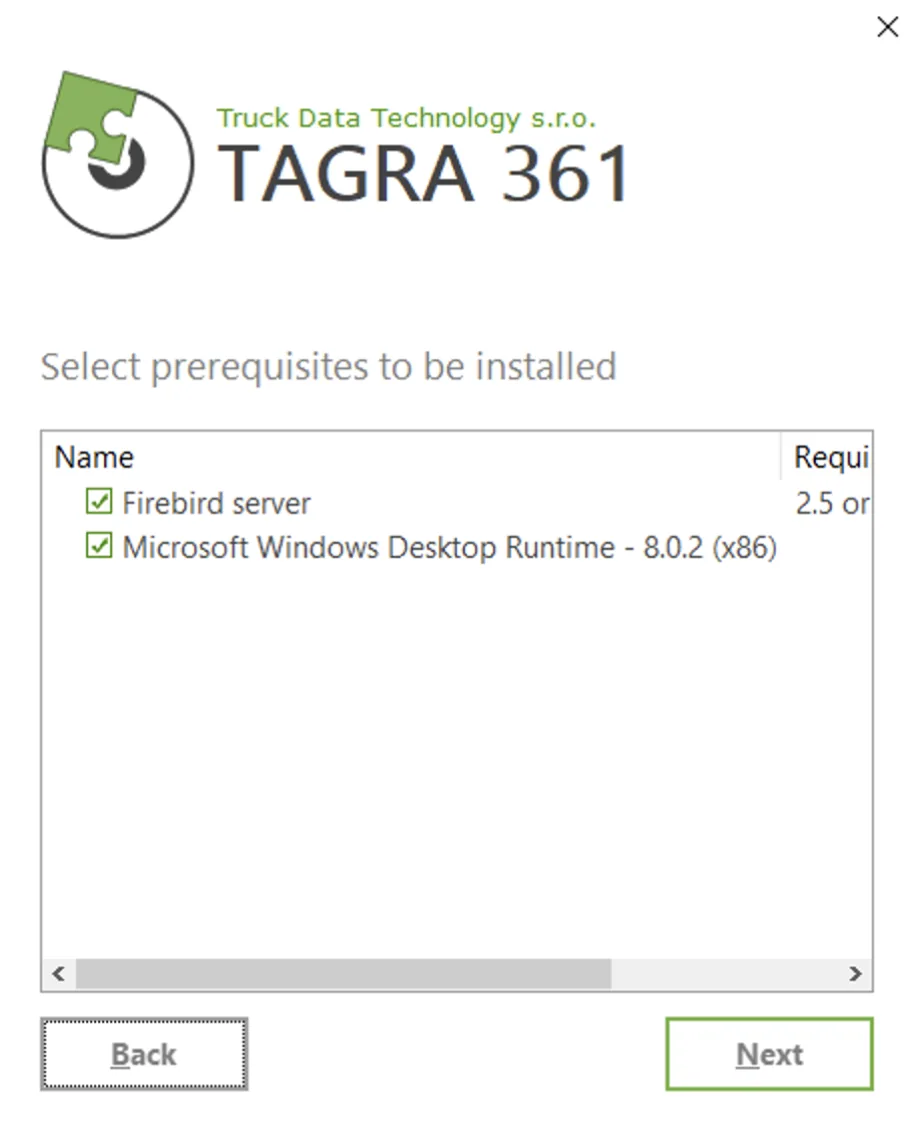
TAGRA needs the Firebird database engine and the Microsoft Windows Desktop Runtime component to run. If you already have them installed (from a Windows update or earlier use), you can skip them by unticking the boxes. Otherwise leave them ticked and continue with “Next”.
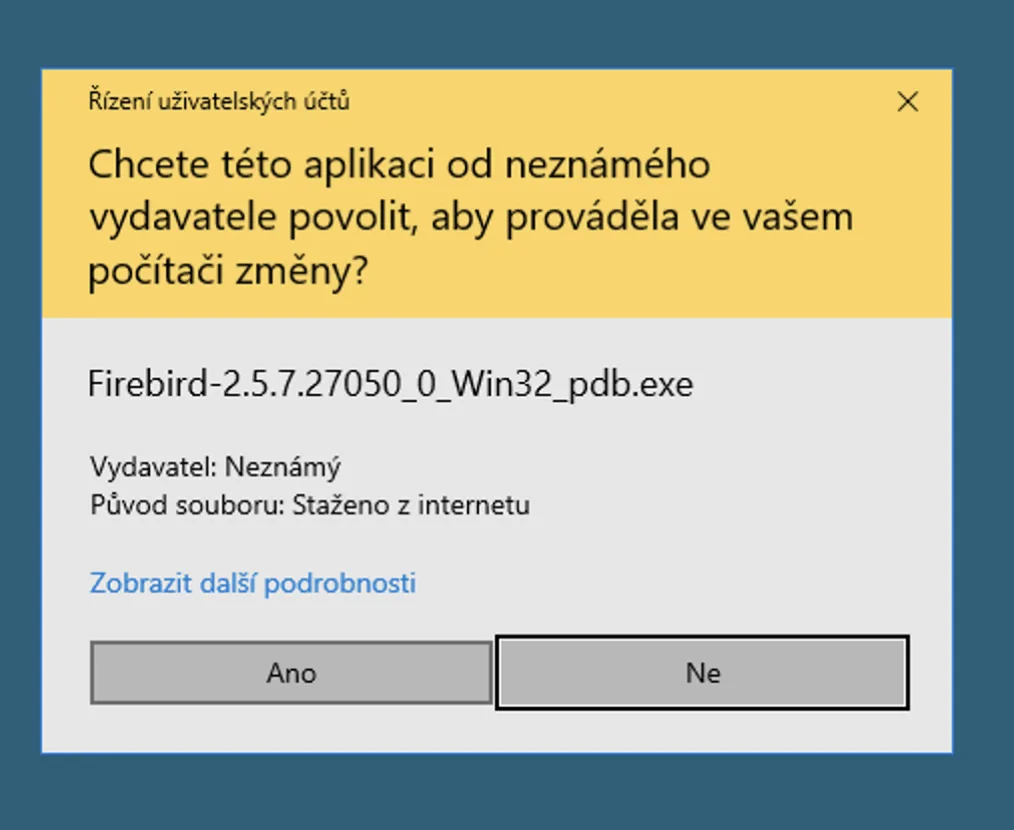
Installing Firebird
Allow the Firebird installation by choosing “Yes”.
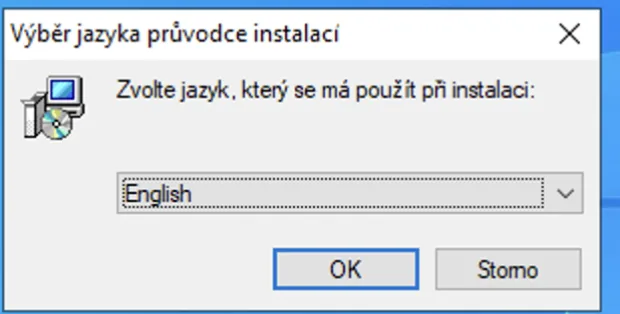
Choose the installer language and confirm with “OK”.
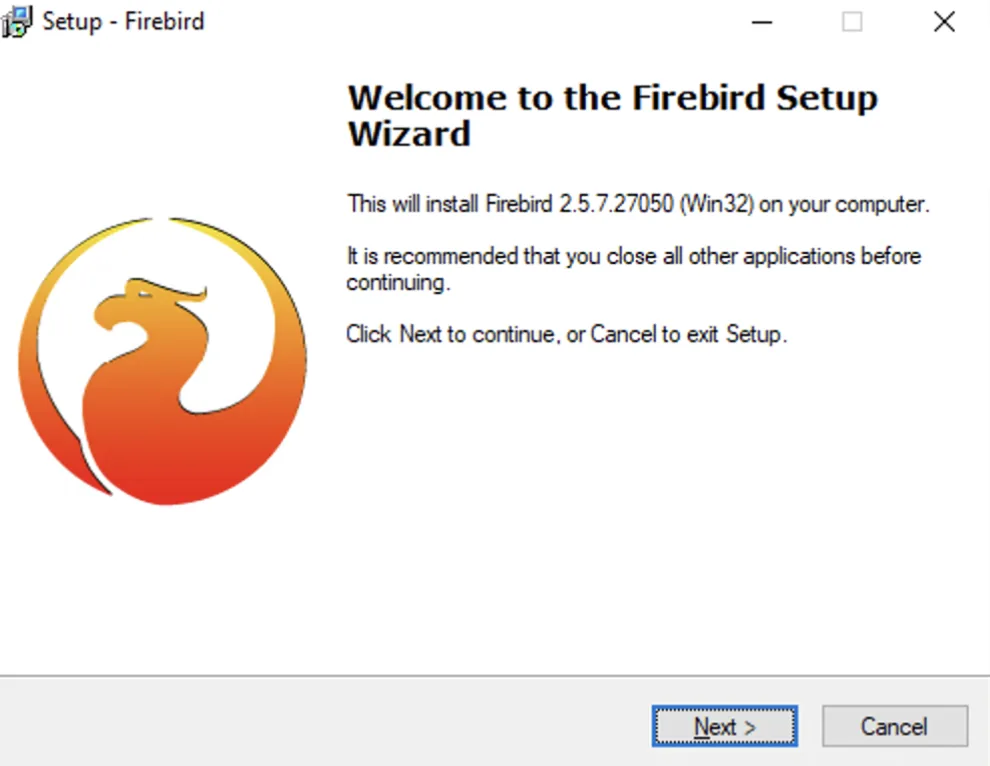
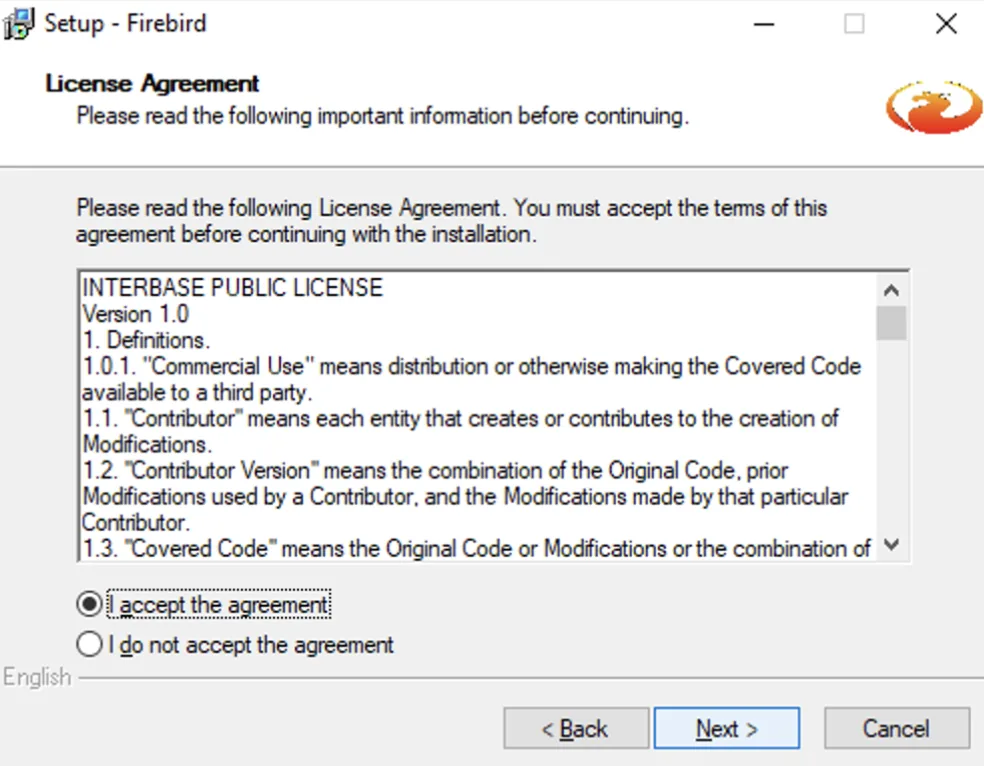
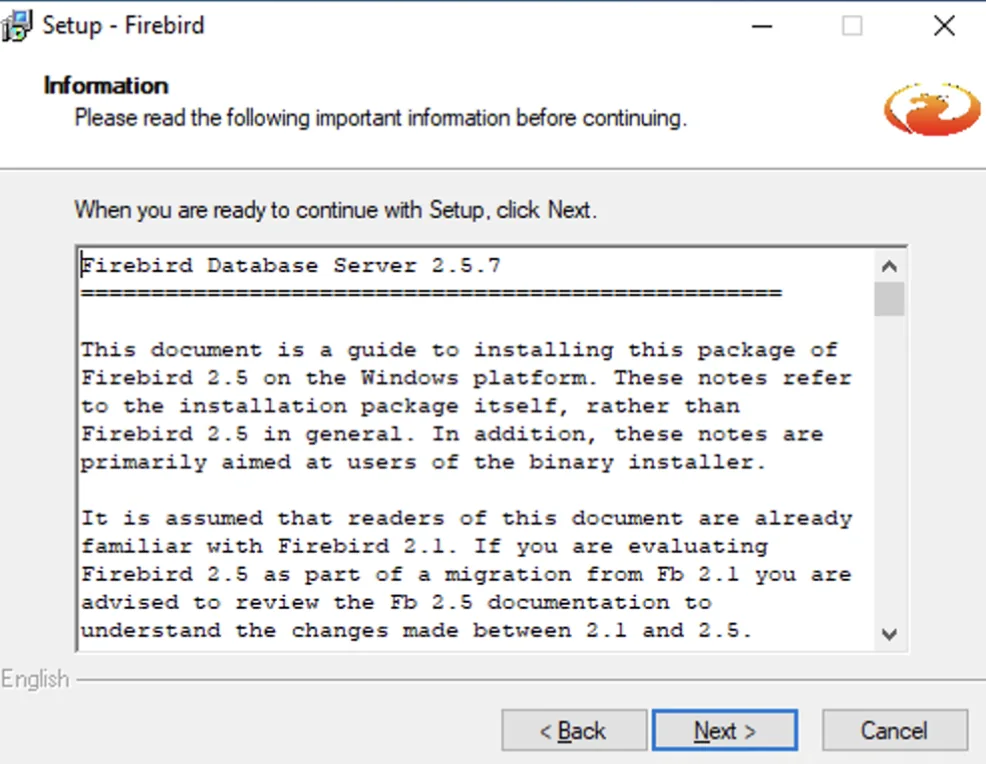
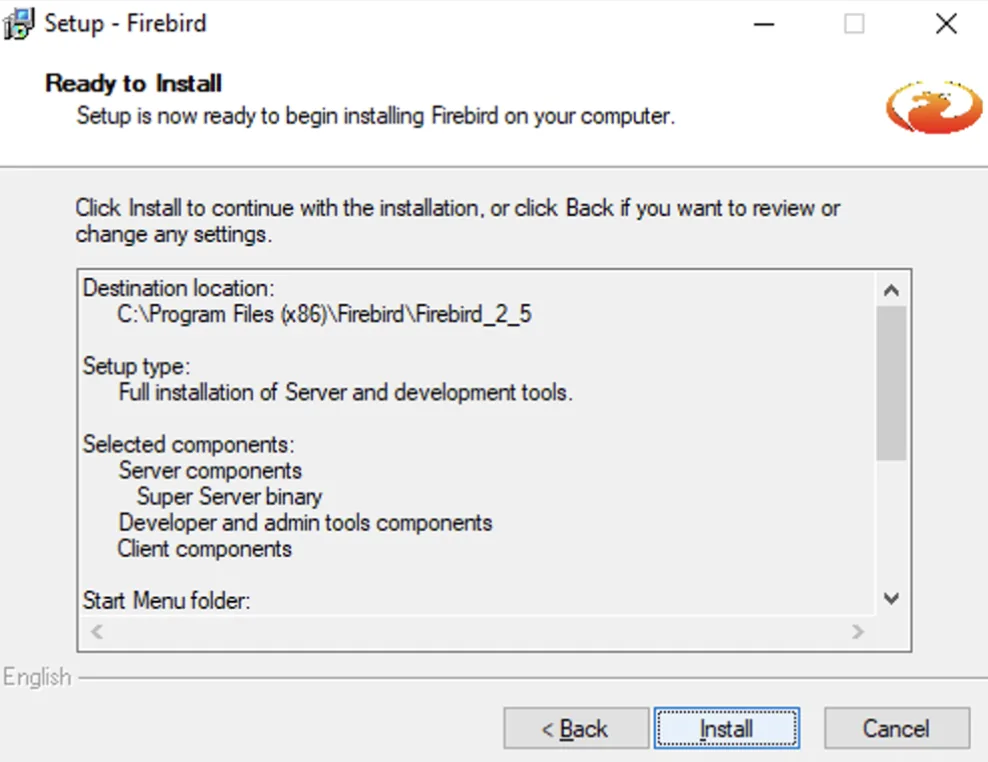
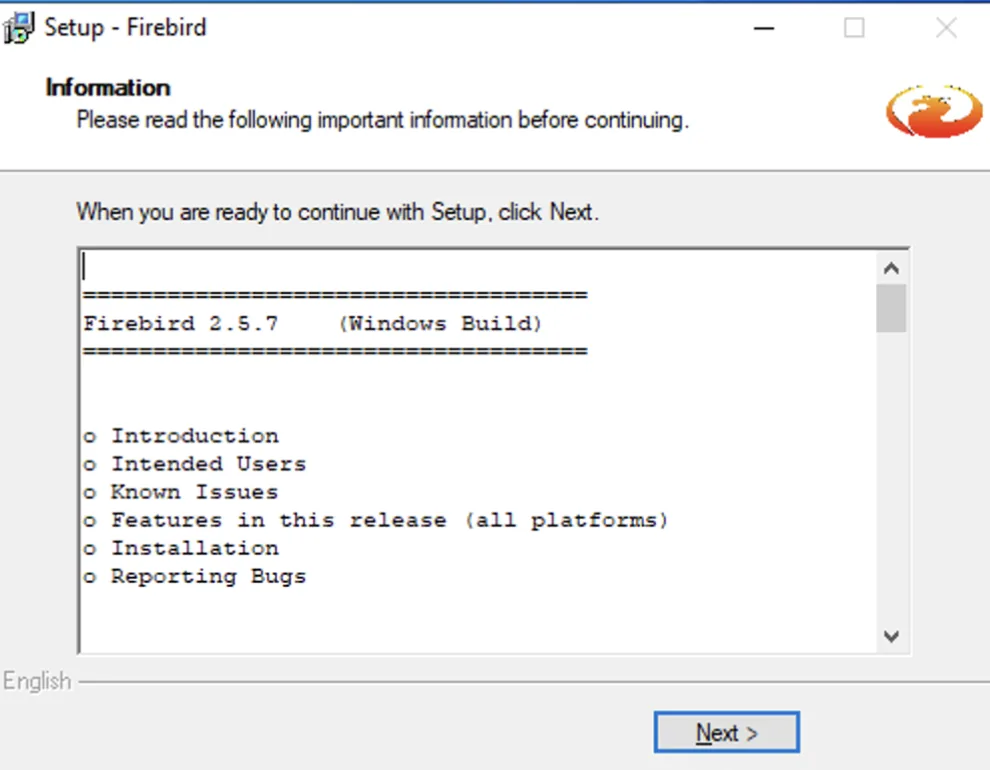
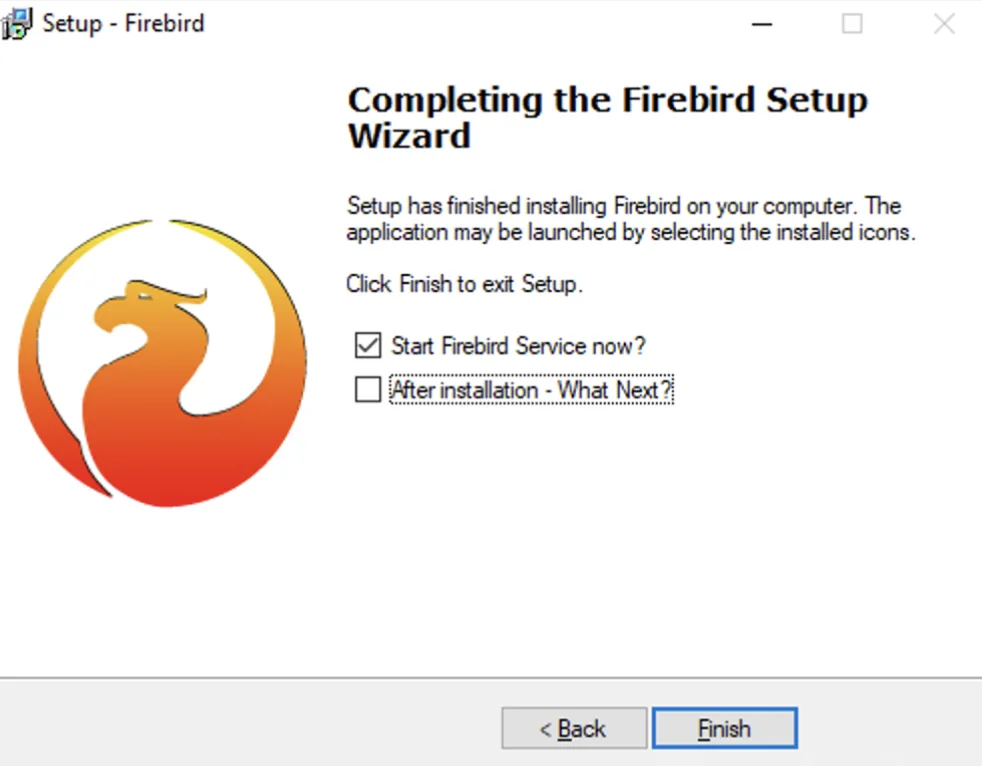
Confirm each screen with “Next” – there is nothing to change – until you reach “Finish”. The following screens show the process.
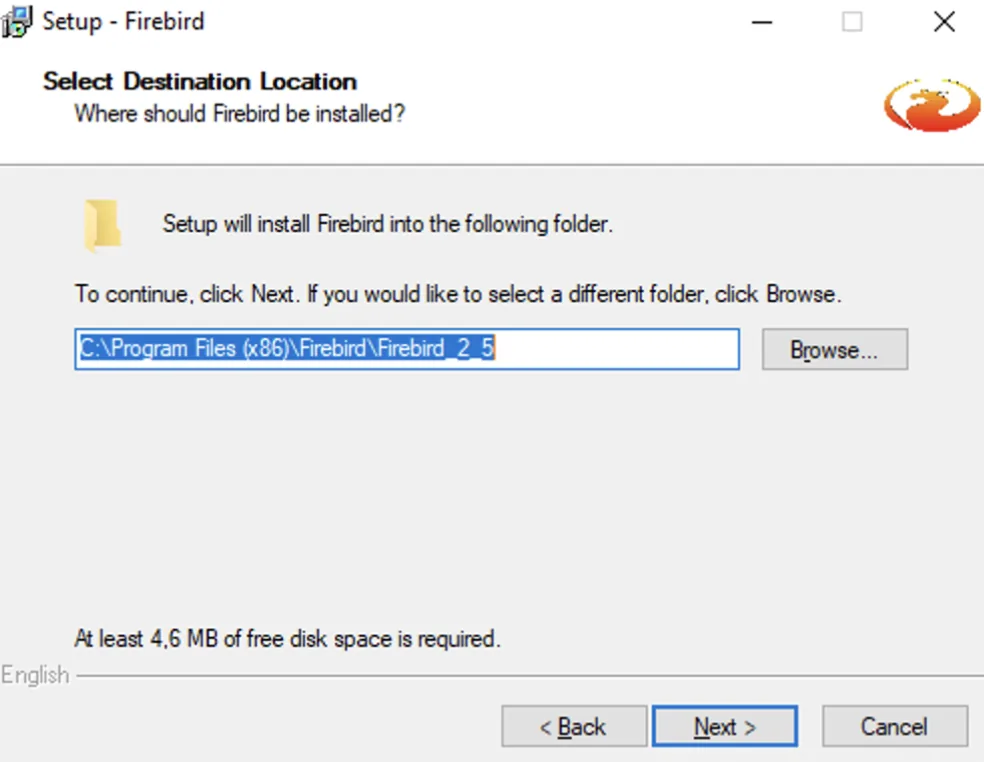
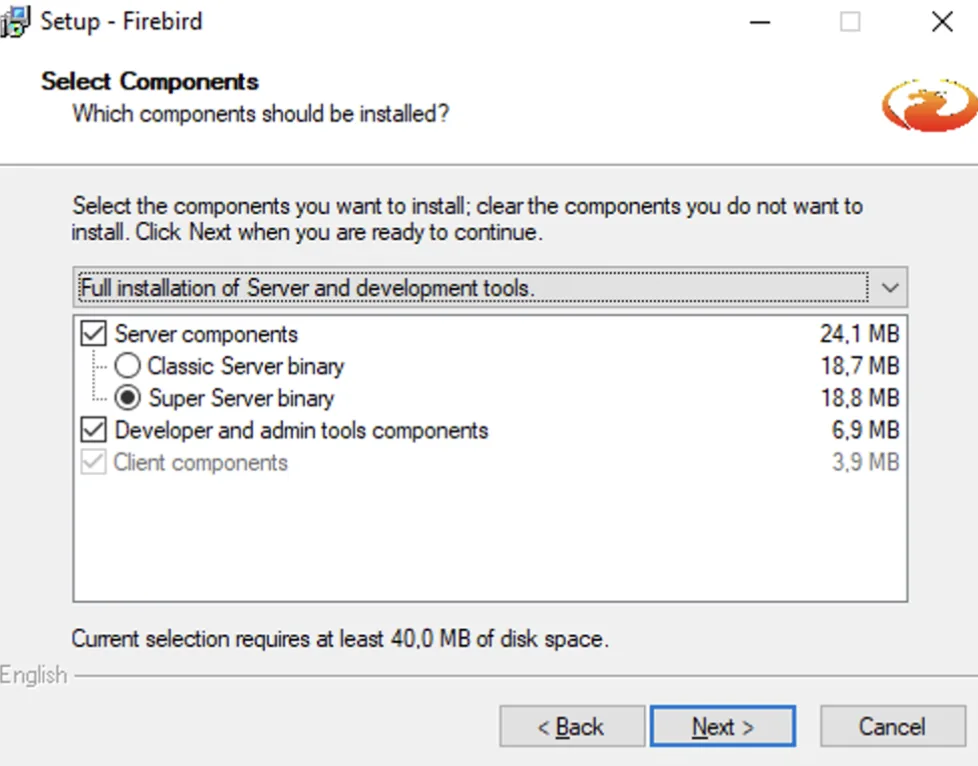
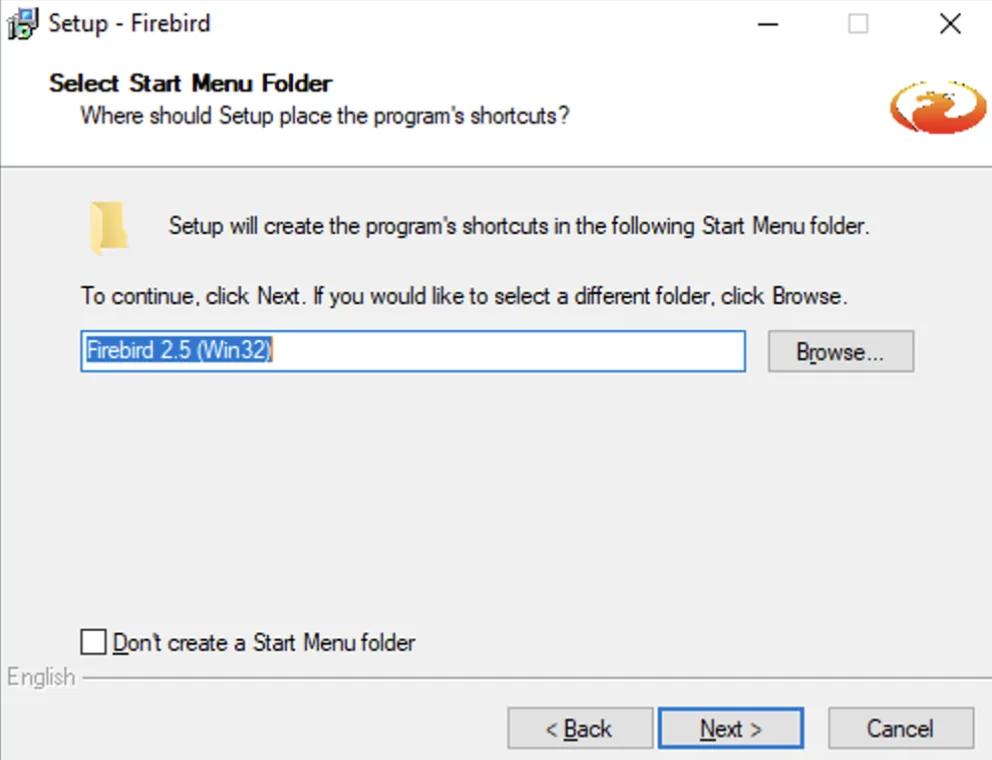
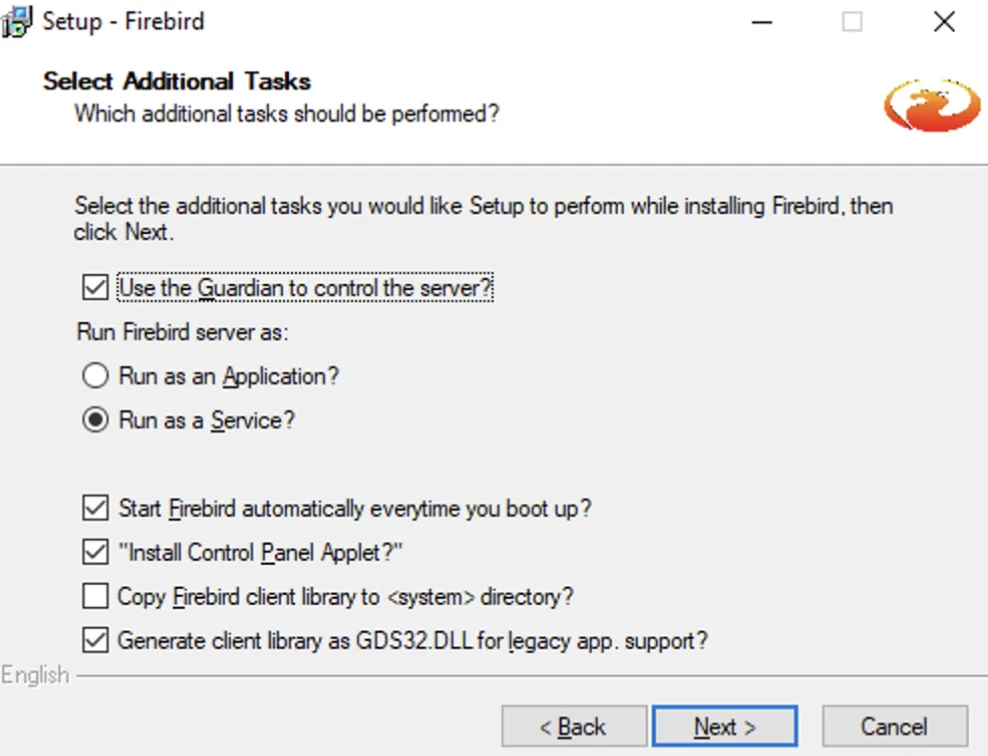
Installing Microsoft Windows Desktop Runtime
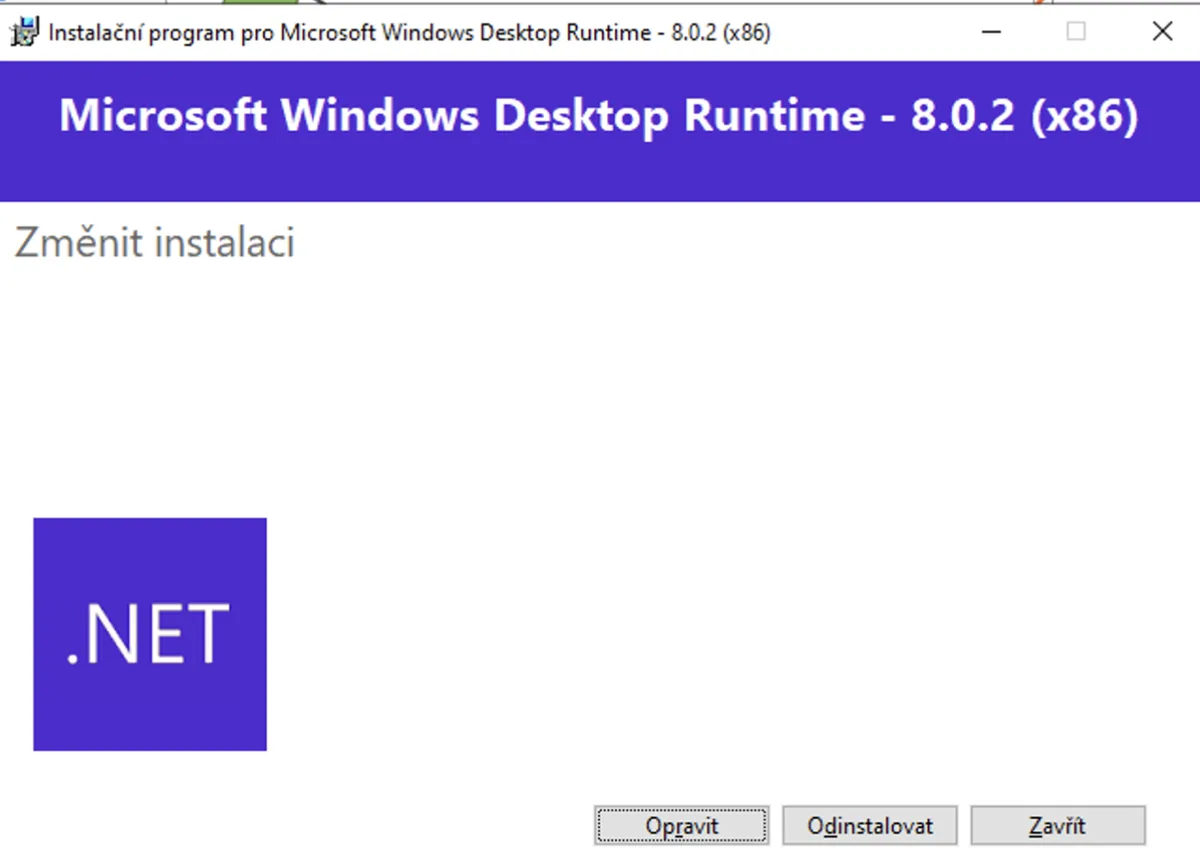
Start the installation with “Install”. If you already have this Windows component, click “Close” instead.
Installing TAGRA
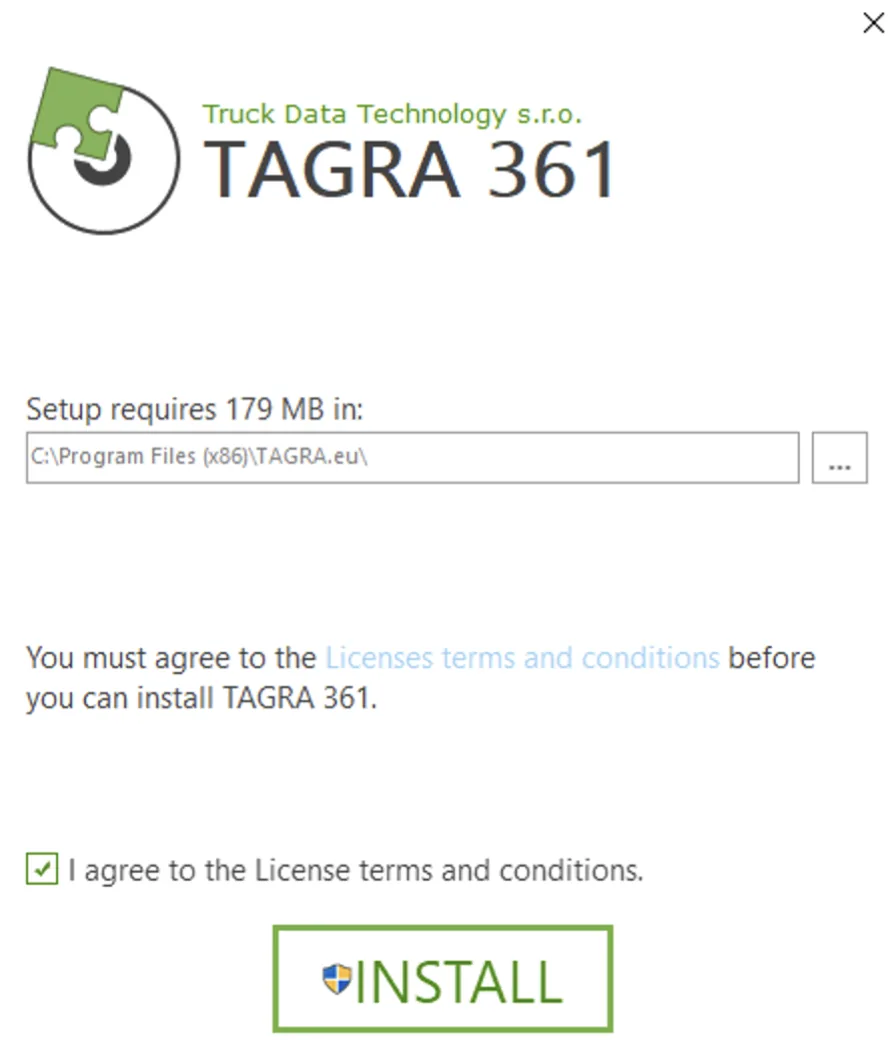
Accept the license terms and click “Install” to start the installation.
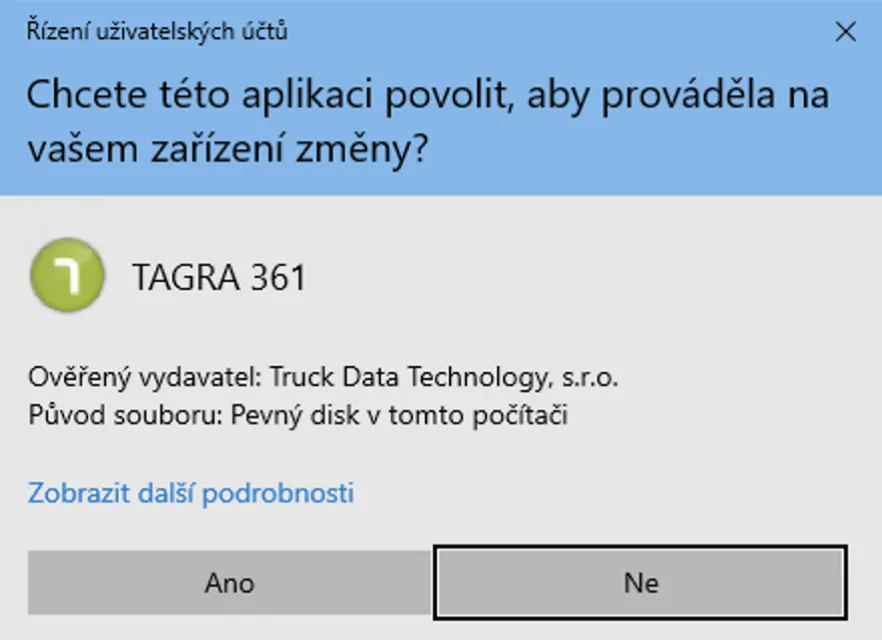
Allow the app to make changes to your PC by clicking “Yes”.
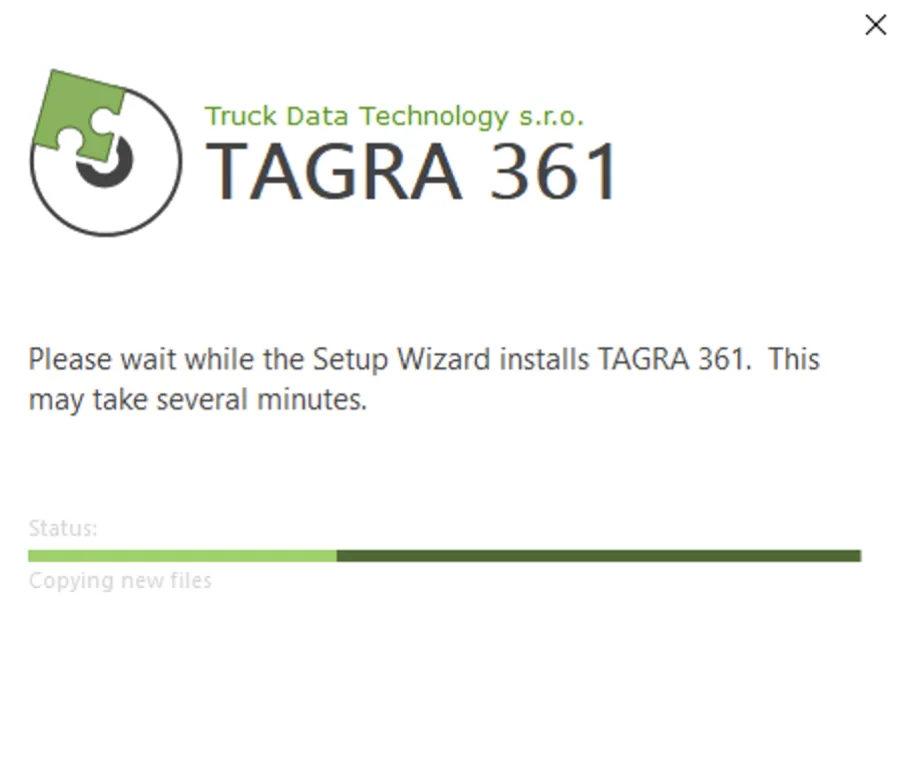
The program installs for a moment – you can follow the progress on screen.
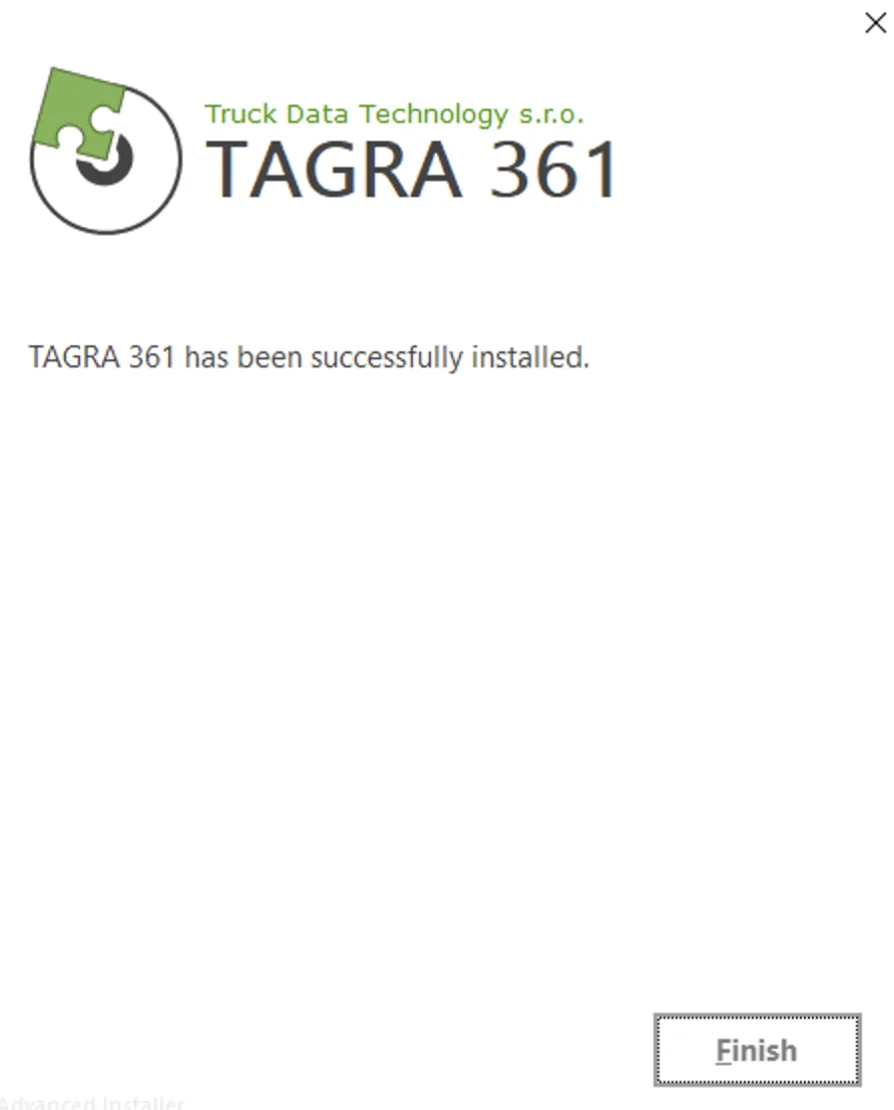
Finish the installation with “Finish”. A green TAGRA shortcut icon appears on your desktop.
First launch of TAGRA
Double-click the icon to launch the program.
A license screen appears. Choose one of three options: Try (new customer, just enter your email), Activate (you already have a license number and activation key), or Offline (the PC has no internet connection).
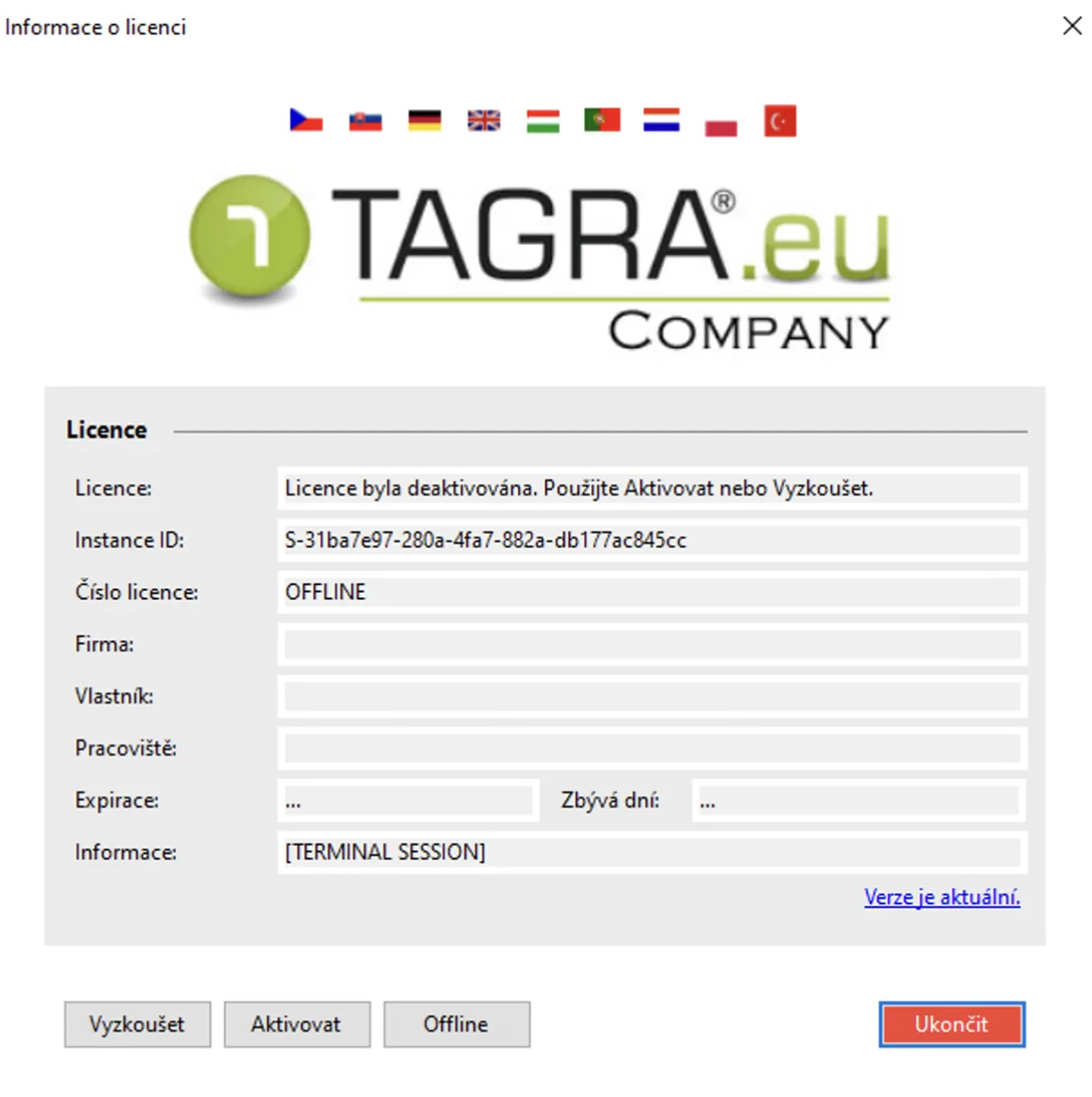
1. Try
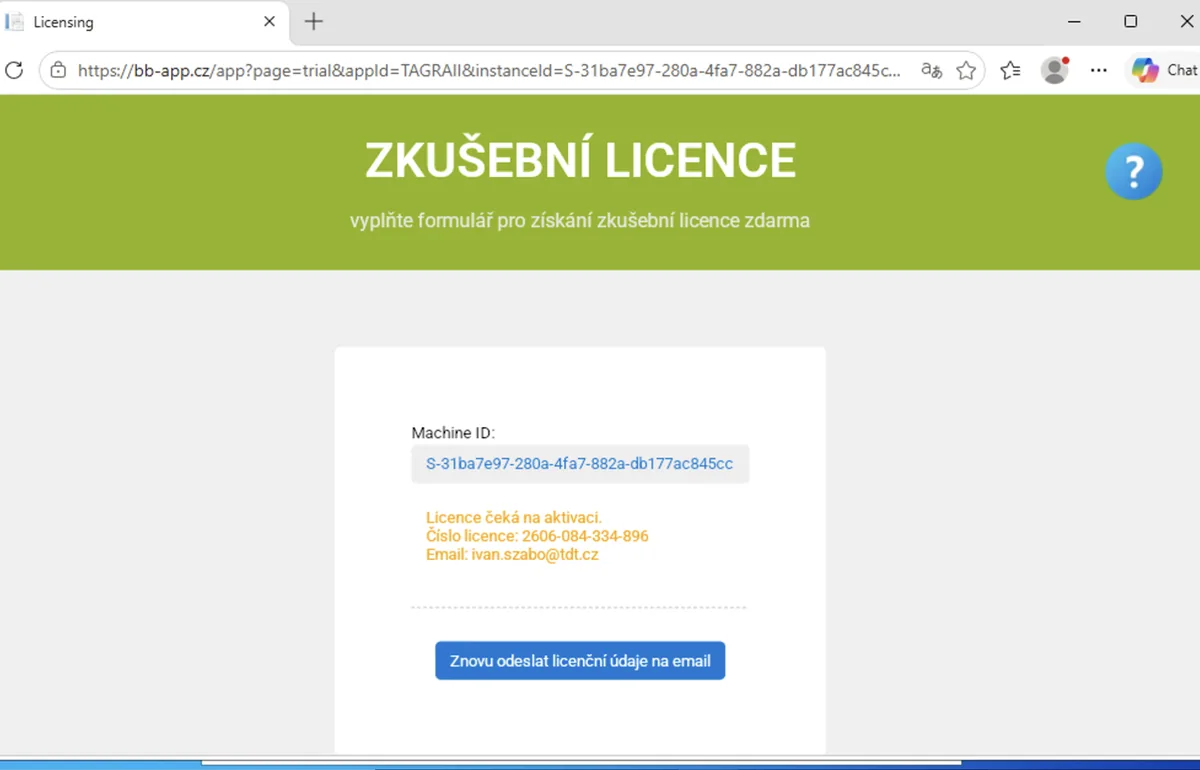
Enter your email address and confirm the 28-day activation in your inbox. In the “Application variant” field, choose straight away how many vehicles you want to use the program for (1, 2, 4, 6, or unlimited – MAX).
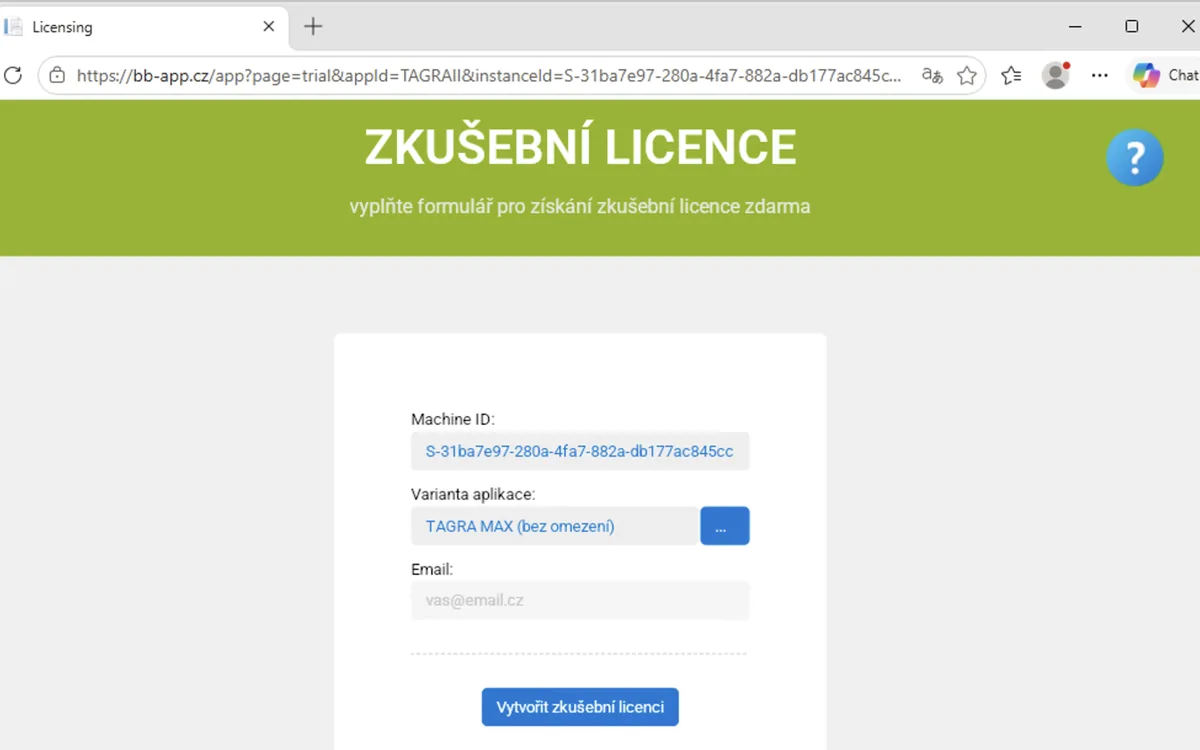
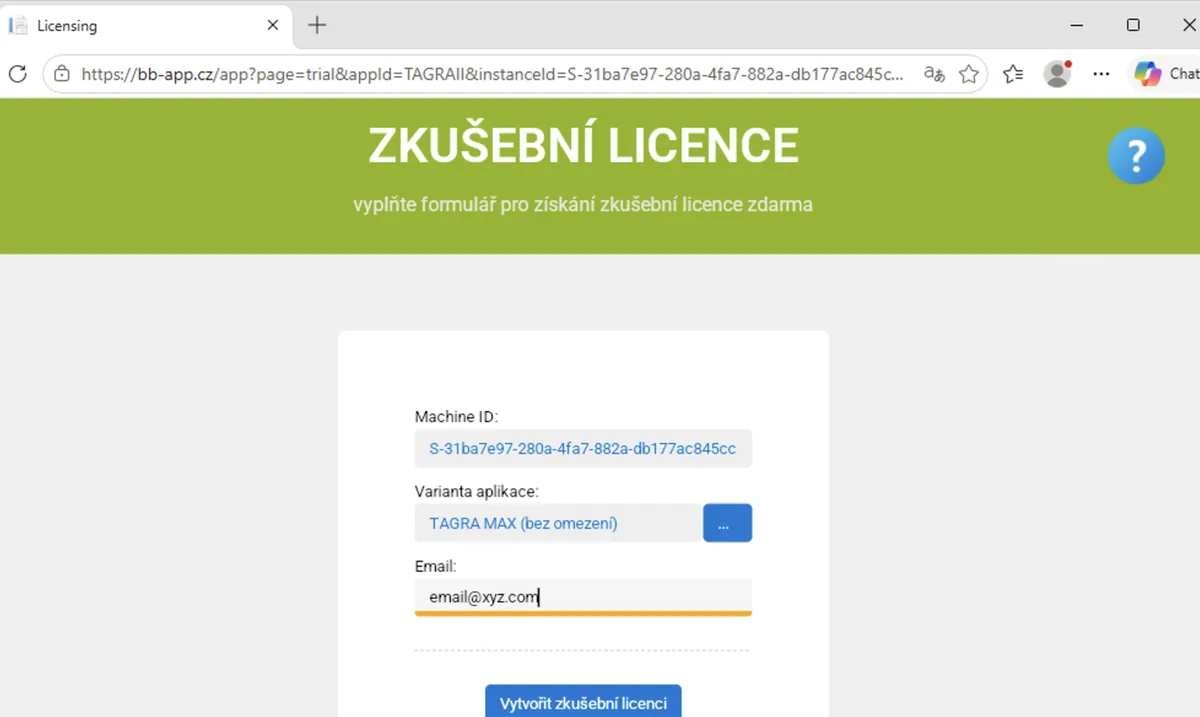
Activation email
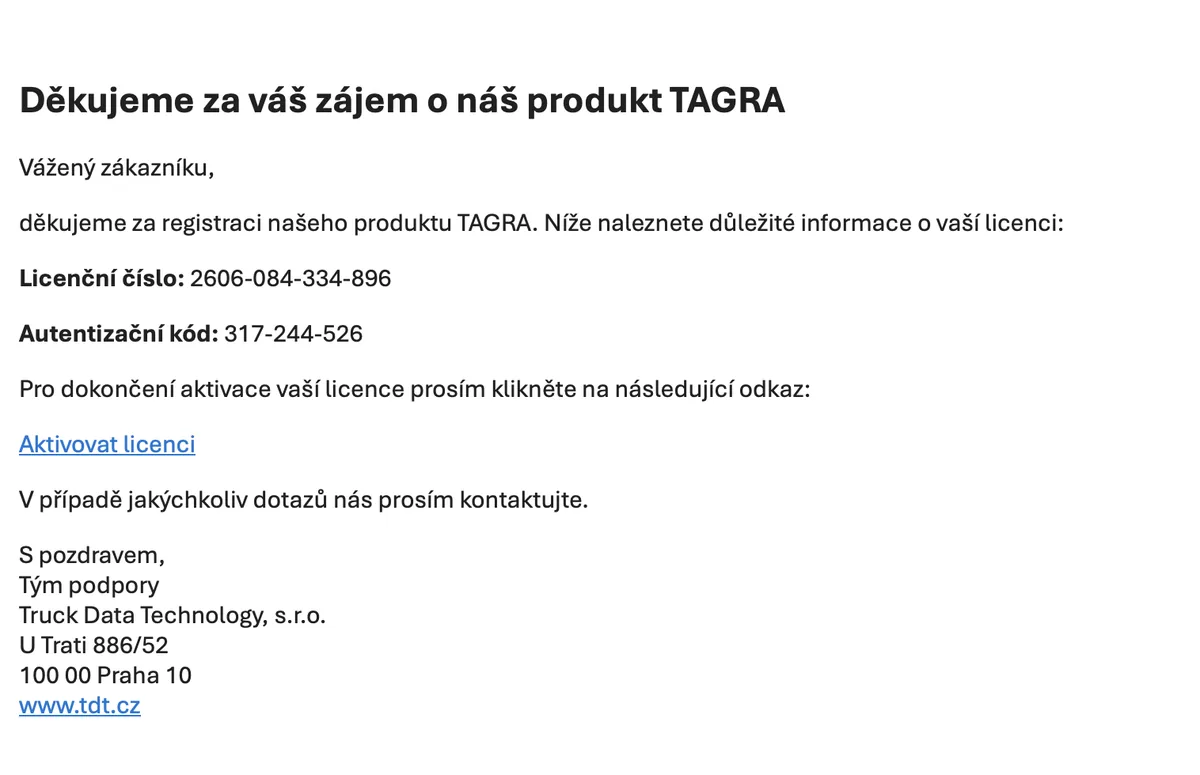
After entering your email, you will receive an activation message – see the example below.
License verification
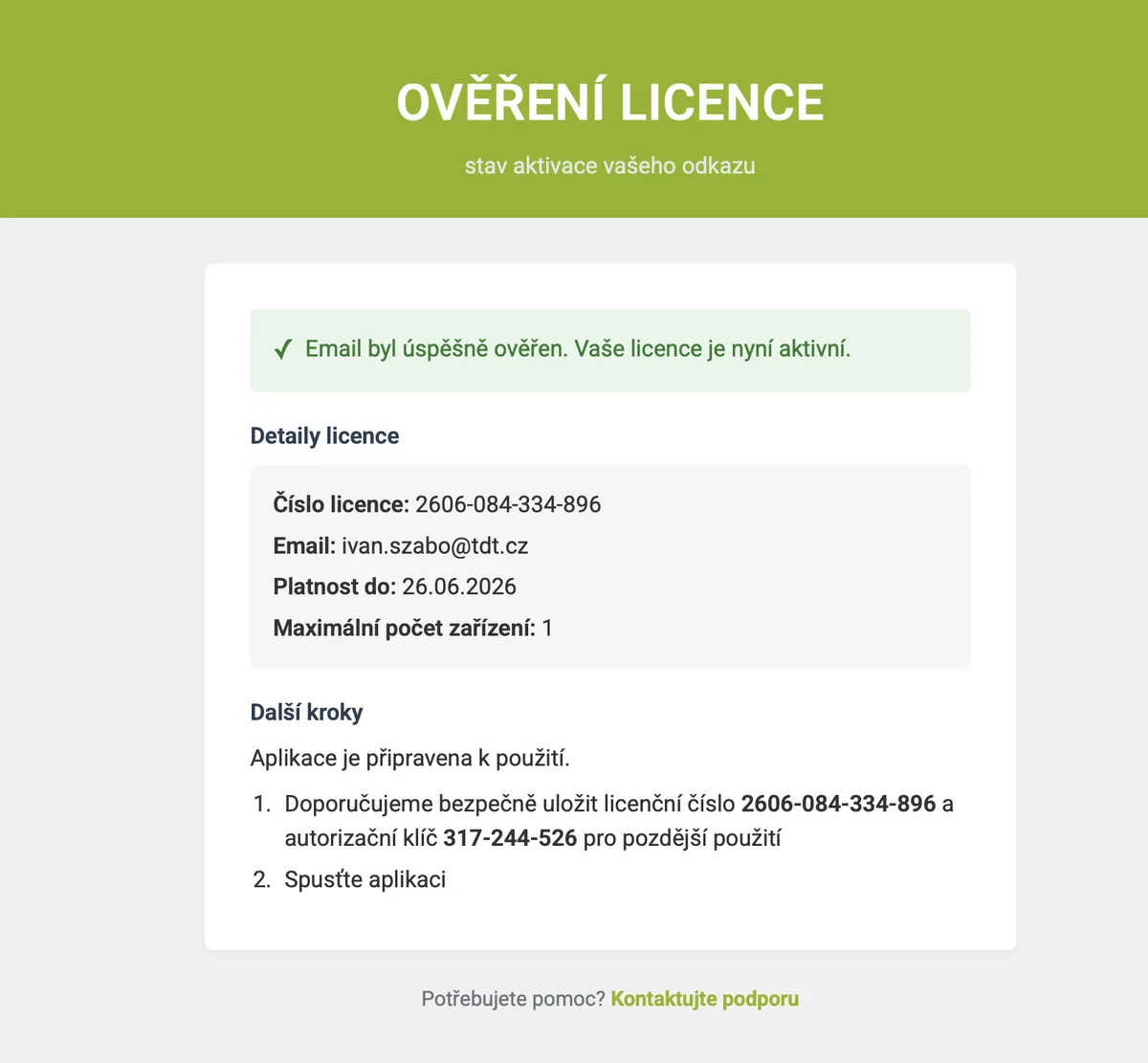
After clicking “Activate license” in the email, the program starts automatically and you can use it for 28 days. After that, you decide whether to purchase it.
2. Activate
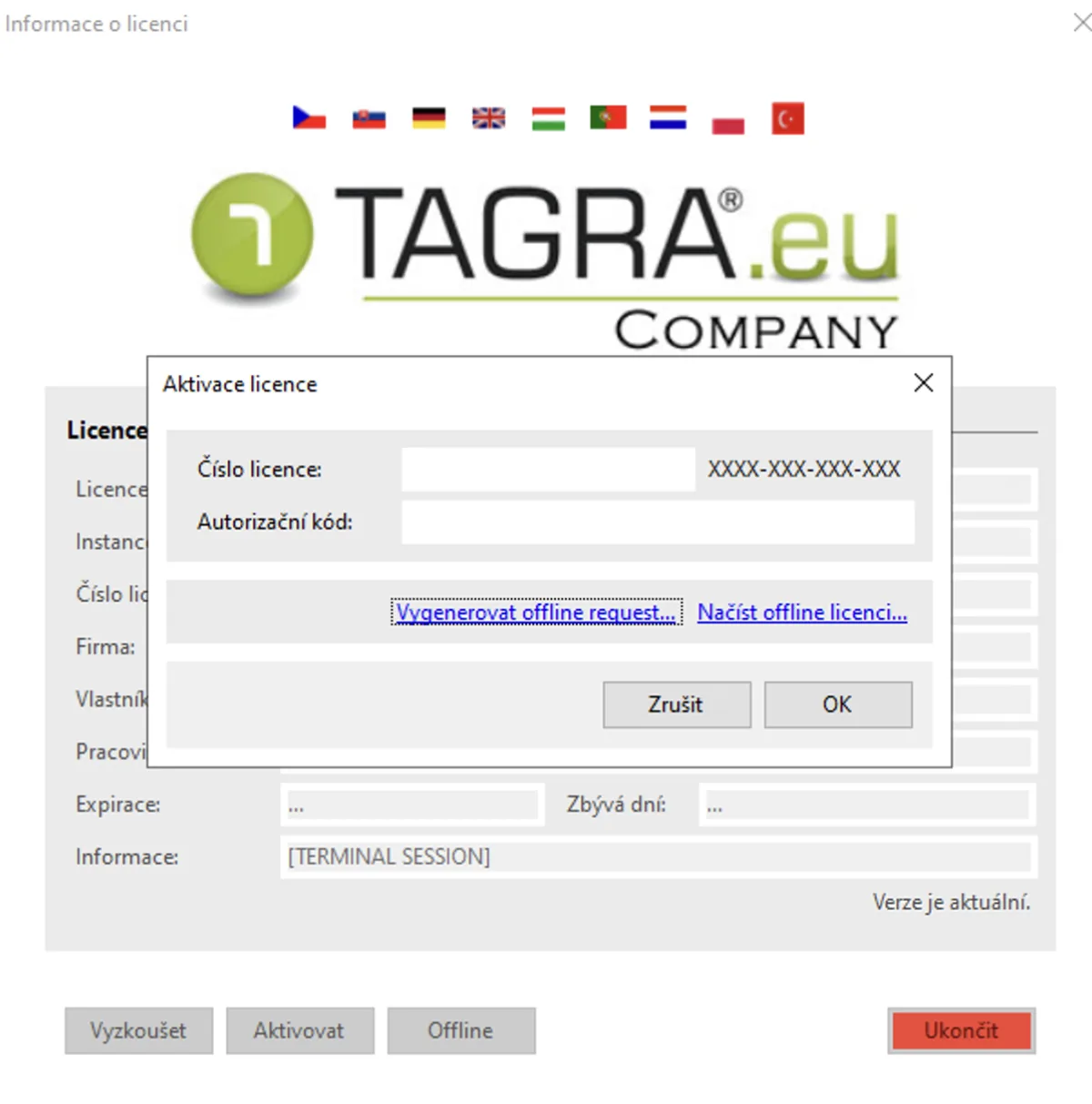
Click “Activate” and enter the license number and activation code – you will find both in your email.
3. Offline
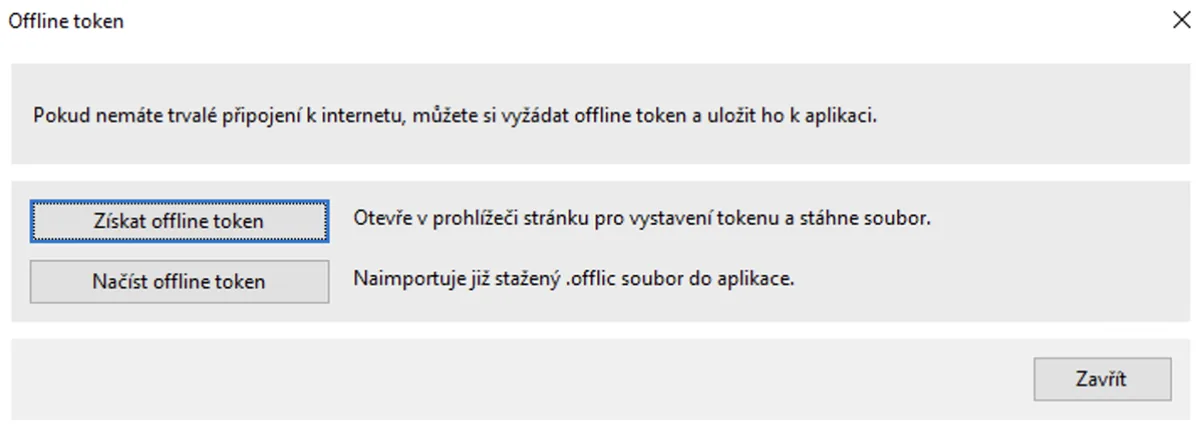
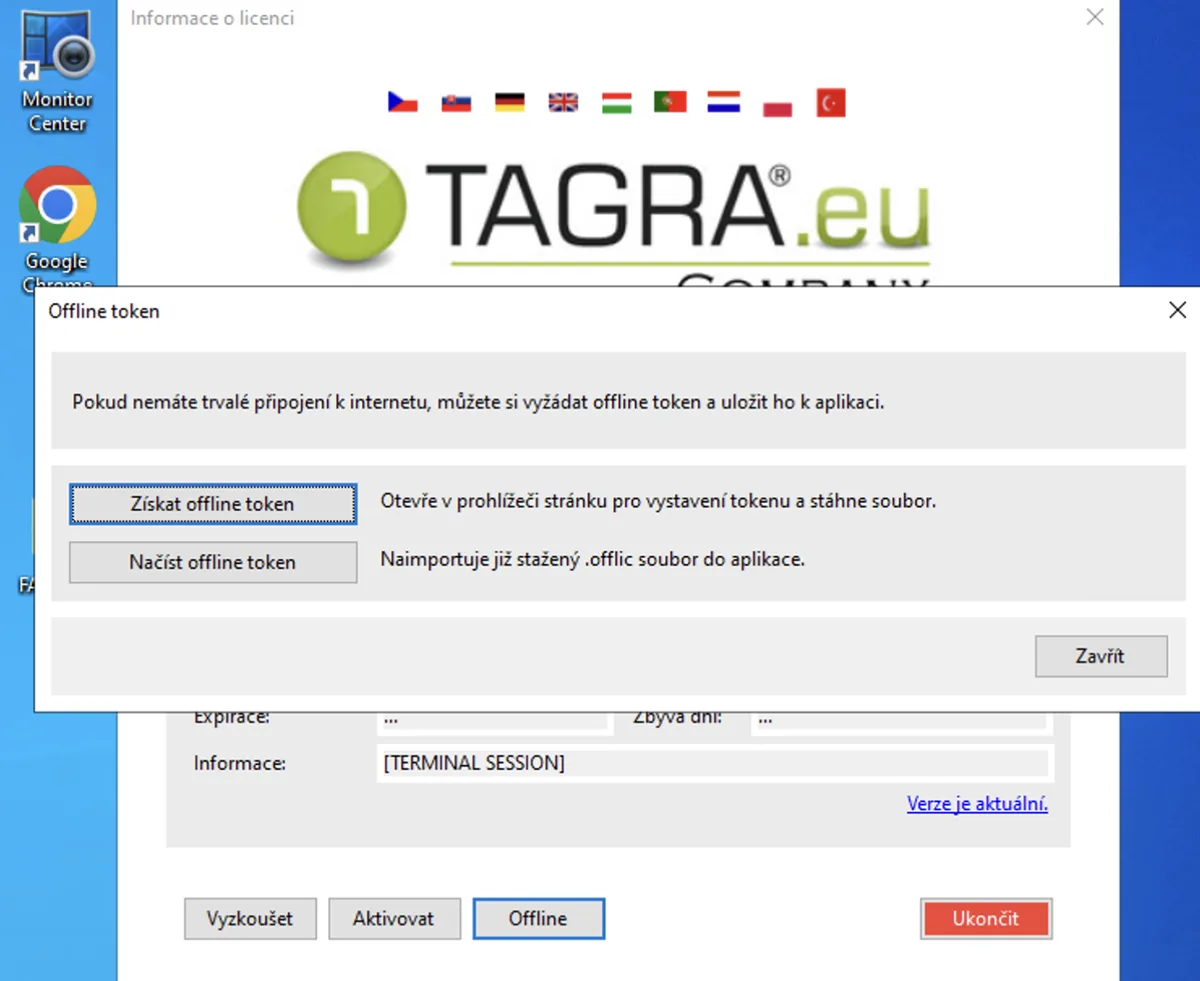
Only use the “Offline” button if this PC has no long-term internet access. It lets you obtain an offline license file for that specific PC.
Renewing and purchasing a license
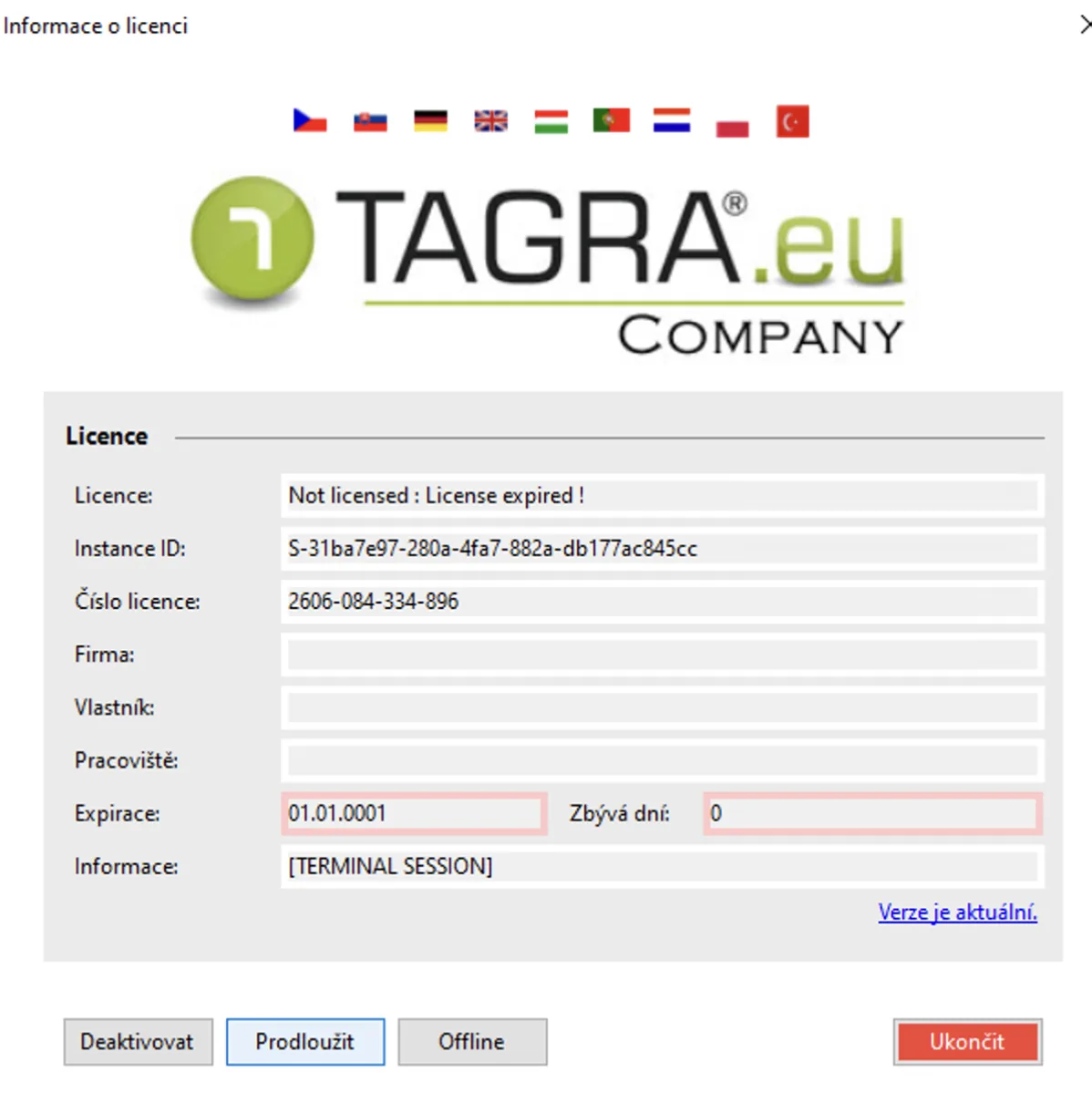
Once the trial period ends, you can purchase the program with the “Renew” button. Choose a plan based on the number of vehicles and enter your billing details. A pro-forma invoice is generated automatically – once it is paid, the license runs for one year. After that, the program keeps running once the annual license fee is paid, and it always includes the latest regulation updates.
Don’t have a tachograph download key yet? You can get one directly from our e-shop (Czech/Slovak market). In other countries write to sales@tagra.app — we will advise on availability.
Download keys on TRUCKMALL.czSteps to purchase or renew a license
Choose a plan based on the number of vehicles, enter your billing details, and pay the generated pro-forma invoice.
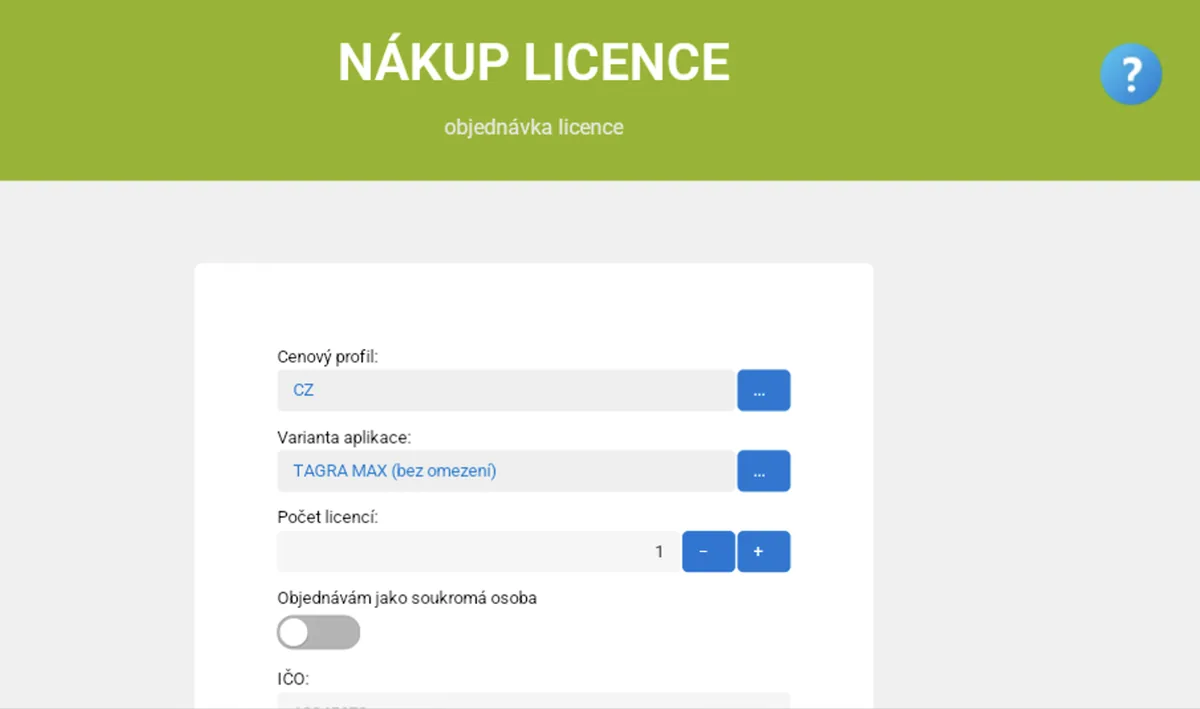
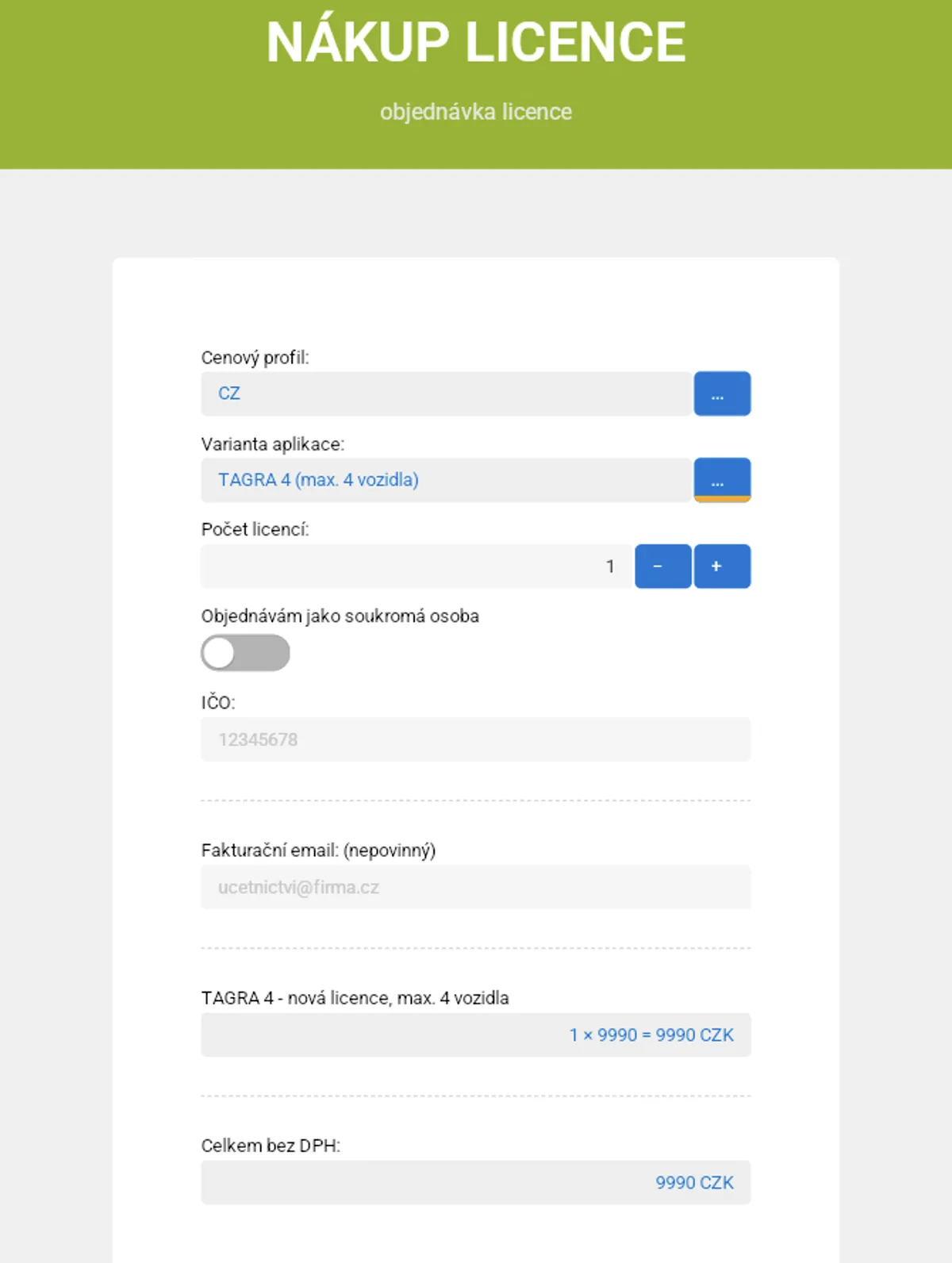
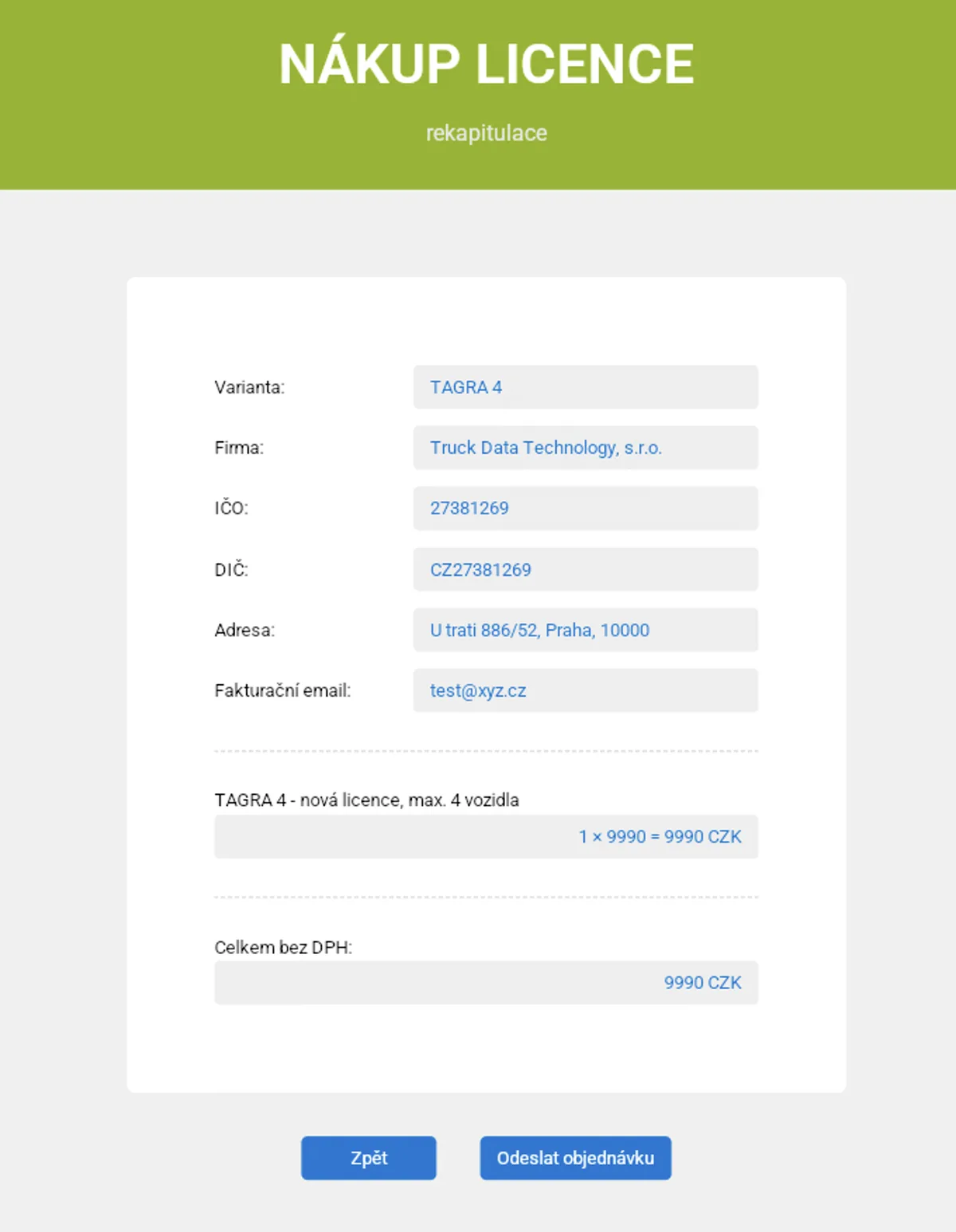
Continue with the “Continue” button.
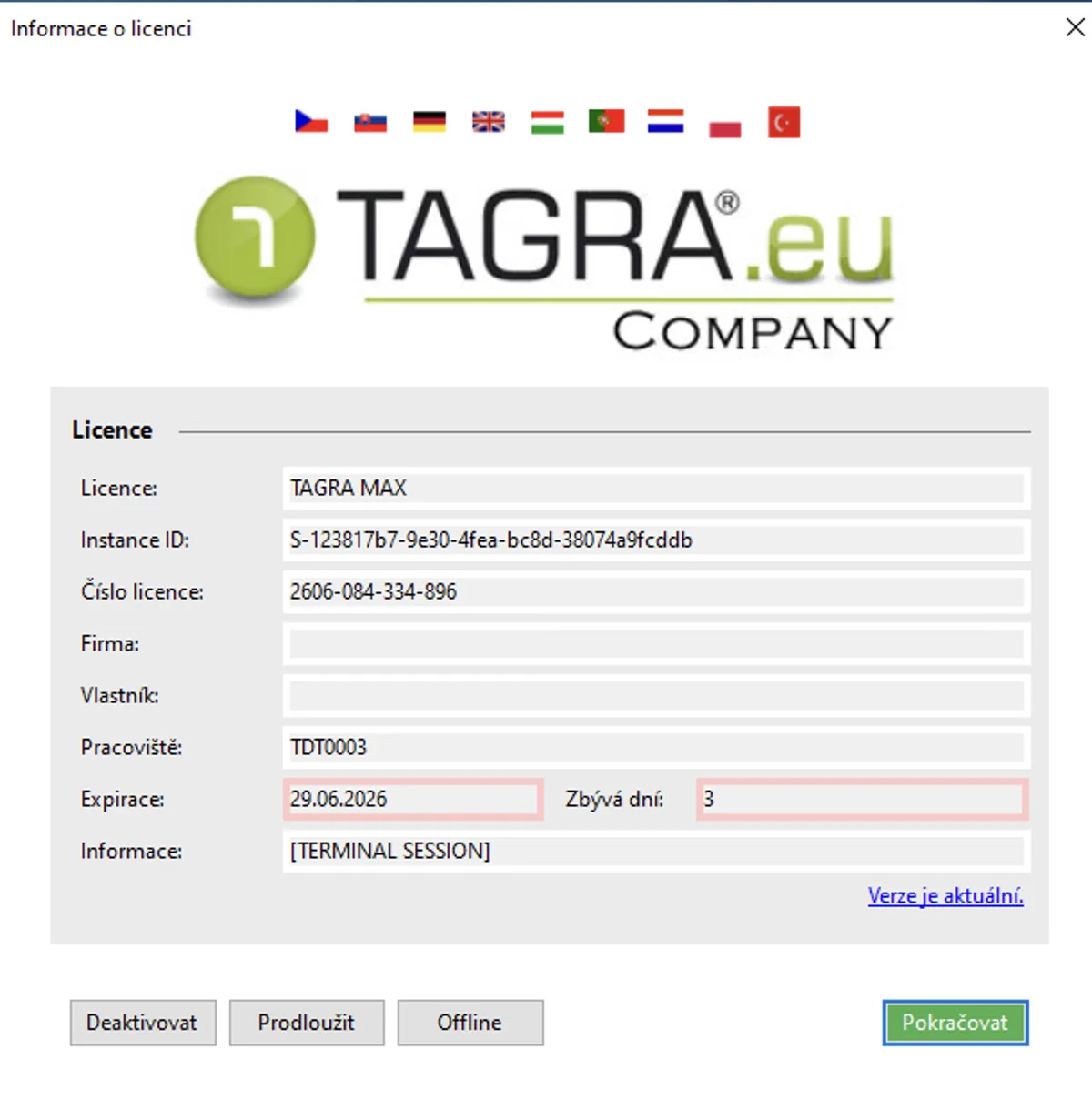
First login to the program
For your first login, start by creating a database – click the white button next to the empty “Database file path” field and choose Create new database.
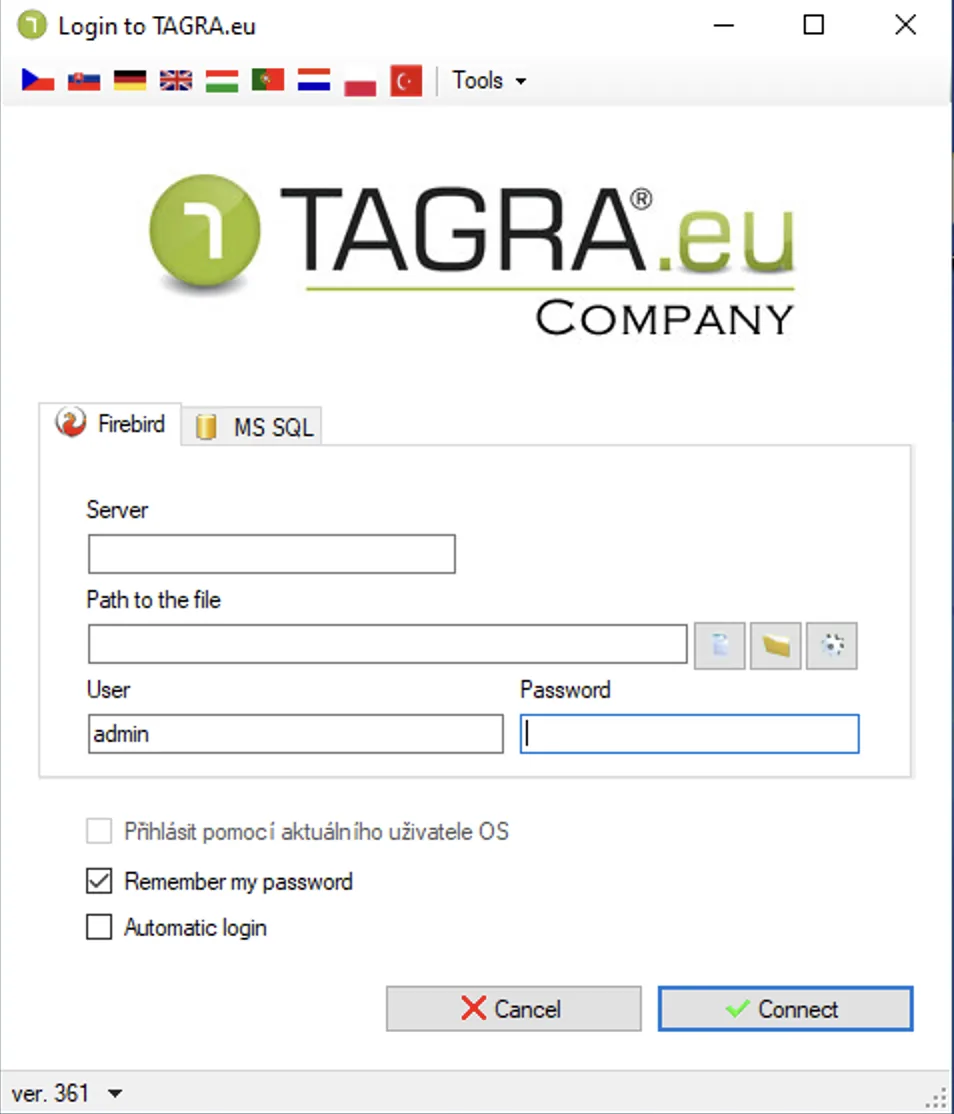
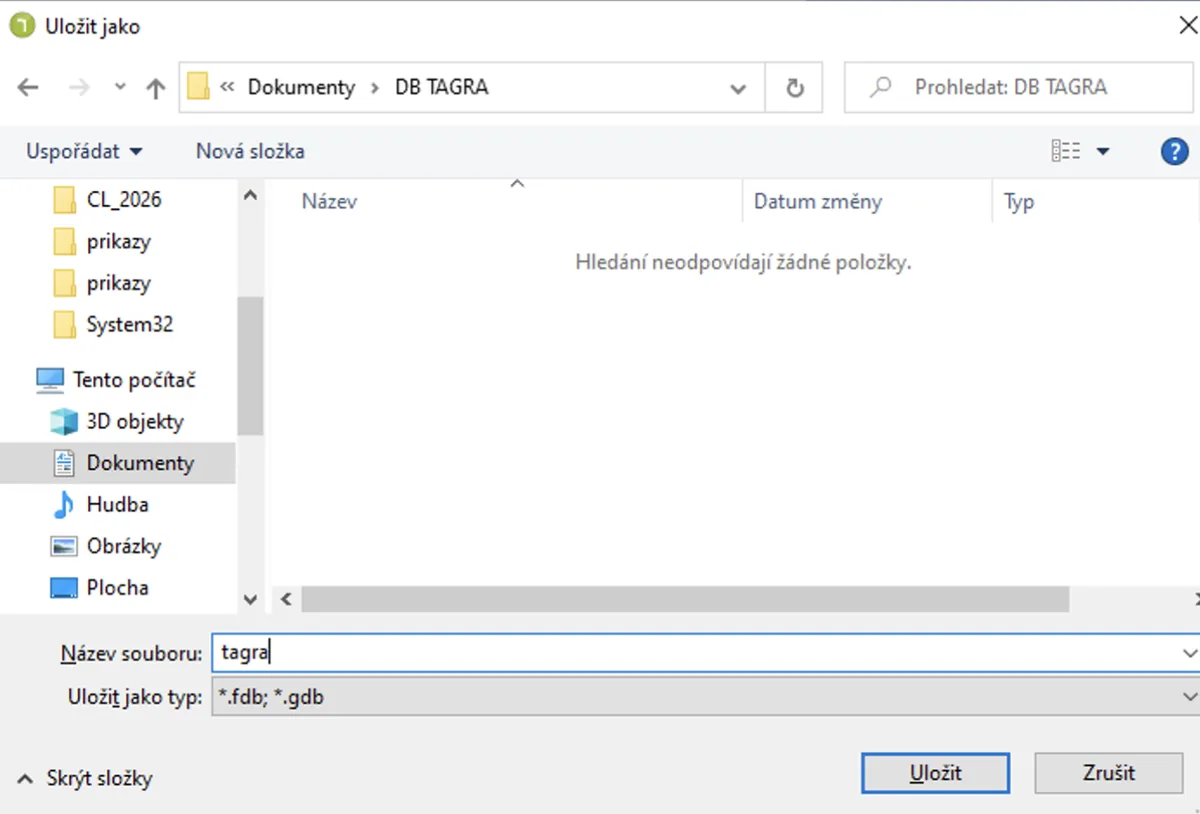
Choose where to save the database (ideally in your Documents folder) and name it (e.g. tagradb.fdb). Confirm with “Save”.
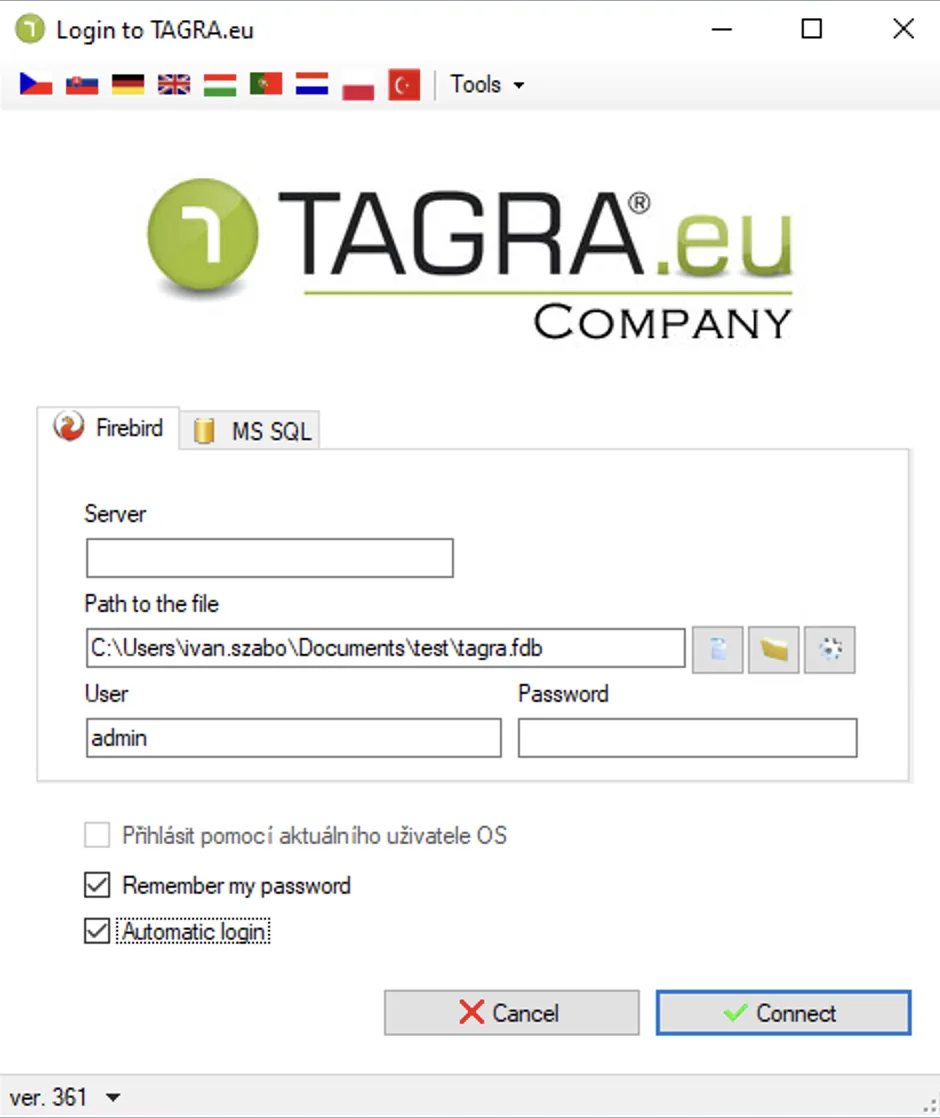
Enter the username admin and password admin, then continue with “Connect”.
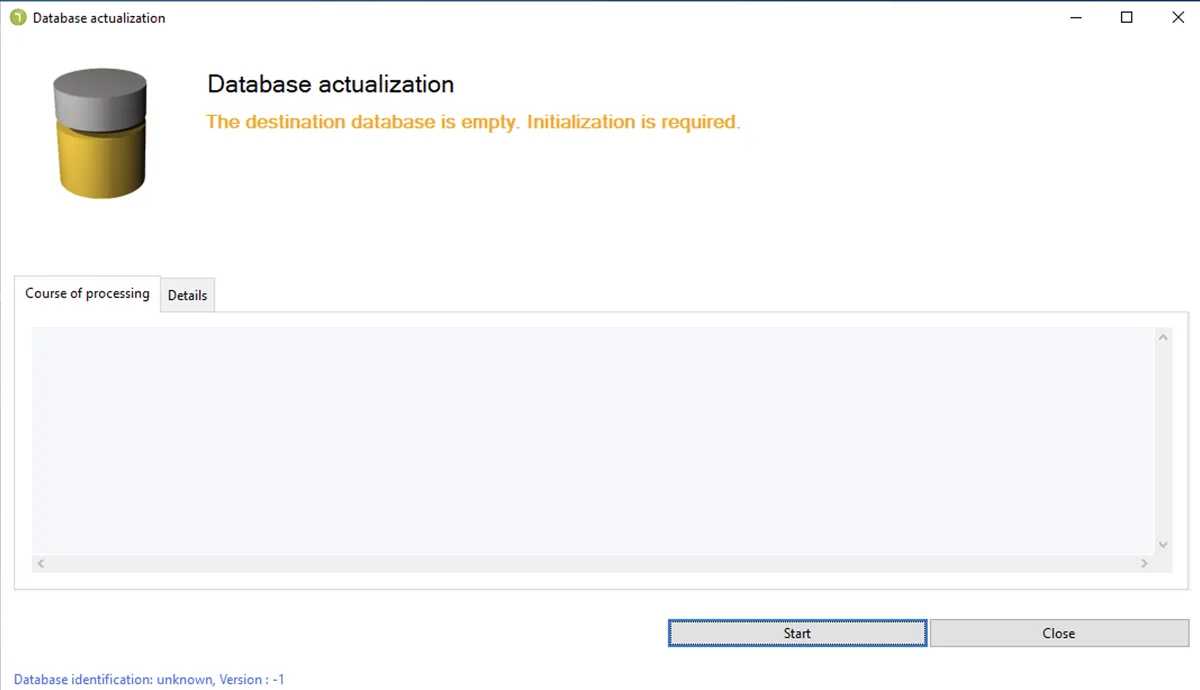
Database initialization
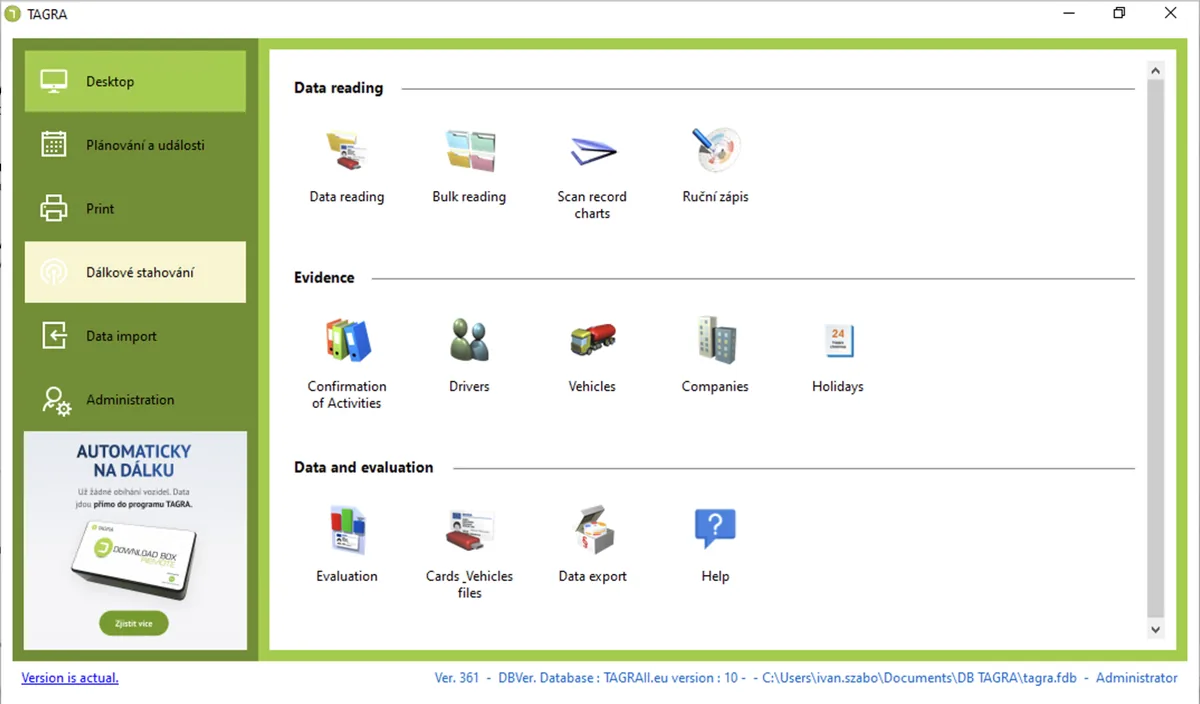
The program will prompt you to create the database for the first time – click “Run”. Once the database is created, you will reach the program’s home screen and can start working.
Frequently asked questions
Do I need to install Firebird if I already have it?
No. If Firebird or the Microsoft Windows Desktop Runtime is already installed on your PC (for example from a previous TAGRA installation or a Windows update), untick the corresponding box in the installer and it will be skipped.
Can I install TAGRA without an internet connection?
Yes. Choose the “Offline” option on first launch instead of “Try” or “Activate”. It generates an offline license file tied to that specific PC, which you can then activate without a live internet connection.
What happens when the 28-day trial expires?
TAGRA stops opening until you either purchase a license (via the “Renew” button) or activate a purchased license number and activation code. No data you've already downloaded or evaluated is lost.
Where is the TAGRA database stored, and can I move it?
You choose the database location yourself during first login — we recommend your Documents folder. The database is a single .fdb file (for example tagradb.fdb), so it can be backed up or moved like any other file; just reconnect TAGRA to the new path afterwards.
Who do I contact if installation or activation gets stuck?
Email helpdesk@tagra.app and our technical support team will help you get unstuck — see the “Need a hand?” box at the end of this guide.
What is TAGRA and what does it do?
TAGRA is specialized software for evaluating and archiving data from digital tachographs and driver cards. It helps transport operators meet legal obligations under EU Regulation 561/2006, the AETR agreement and working-time law — checking driving times, breaks and rest periods, generating reports, and archiving data in .DDD format.
Which TAGRA version should I choose?
It depends on your fleet: TAGRA TRUCKER for a single driver evaluating just their own card, TAGRA 1 for one vehicle, TAGRA 2/4/6 for small to mid-size fleets, and TAGRA MAX for unlimited vehicles. TAGRA TRUCKER EDU suits driving schools with unlimited driver cards. As your fleet grows, your license can be upgraded without buying the software again — see the full comparison on our fleet operators page.
How much does the annual license renewal cost?
The first year of updates is included in the purchase price. From the second year, an annual license fee applies depending on the variant: from €19/year (TAGRA Trucker) up to €149/year (TAGRA MAX), covering both legislative updates and technical support — see the full pricing table.
How often do I need to download data from the tachograph and driver card?
Driver card data must be downloaded at least every 28 days, and vehicle tachograph data at least every 90 days, under EU Commission Regulation 581/2010. Downloaded data must then be archived for at least one year — we recommend 3–5 years.
Is downloading the data enough, or do I also need to evaluate it?
Downloading alone only satisfies the archiving requirement. Article 10(2) of EU Regulation 561/2006 also requires operators to regularly check the data and address driver violations — which is exactly what TAGRA does, clearly flagging violations and preparing reports for inspections.
Is TAGRA compatible with Smart Tacho II (G2V2) and VDO/Stoneridge tachographs?
Yes. TAGRA is fully compatible with second-generation smart tachographs (G2V2) and supports both VDO and Stoneridge units, working with .DDD (card/vehicle), C1B and V1B formats.
What's the difference between TAGRA TRUCKER and TAGRA 1?
TAGRA TRUCKER evaluates only driver card data — one driver, one card. TAGRA 1 additionally evaluates vehicle tachograph data, making it the right choice for owner-operators with a single vehicle who need full operator-level compliance, not just their own driving record.
Does TAGRA work on a Mac?
TAGRA is a native Windows application. On a Mac, you can run it via Parallels Desktop, VMware Fusion, or Remote Desktop to a Windows server — but for the best stability and performance, we recommend a PC running Windows 10 or 11.
Can I use TAGRA on multiple computers or over a network?
The standard license is single-user (one computer, one user). A networked, multi-user variant is available for teams that need shared access — contact sales@tagra.app to discuss pricing and setup.
What if I already have a download device from a competitor?
TAGRA reads the standard .DDD, C1B and V1B formats used across all tachographs and download devices, so data from another brand's download key loads and evaluates without any problem. You don't need to switch hardware — just start evaluating in TAGRA.
Does the evaluation obligation also apply to vans?
Yes. From 1 July 2026, the tachograph and data-evaluation obligation extends to vans and combinations of 2.5–3.5 t used in international transport for hire or reward, or for cabotage. TAGRA is fully ready for this change. Read more in our guide on the new obligation.
Do you provide training and technical support for TAGRA?
Yes — we offer hands-on training on using TAGRA for your team, and technical support (phone, email and remote assistance) is included for the full duration of your license.
What if I don't want to do the evaluation myself?
You can use our evaluation service instead — send us your data and our specialists handle the violation checks, reports and summaries for you. It's a good fit for operators who'd rather not handle evaluation in-house. Contact sales@tagra.app to discuss.
What’s next?
Now that TAGRA is installed, the next step is picking the right plan for your fleet and downloading your first set of tachograph data.
Need a hand?
Stuck on installation or activation? Our technical support team is happy to help.
Contact technical support